Picture Box
Press \ to open the Suggestion Box, then select [image-container]. The result will appear as shown below:
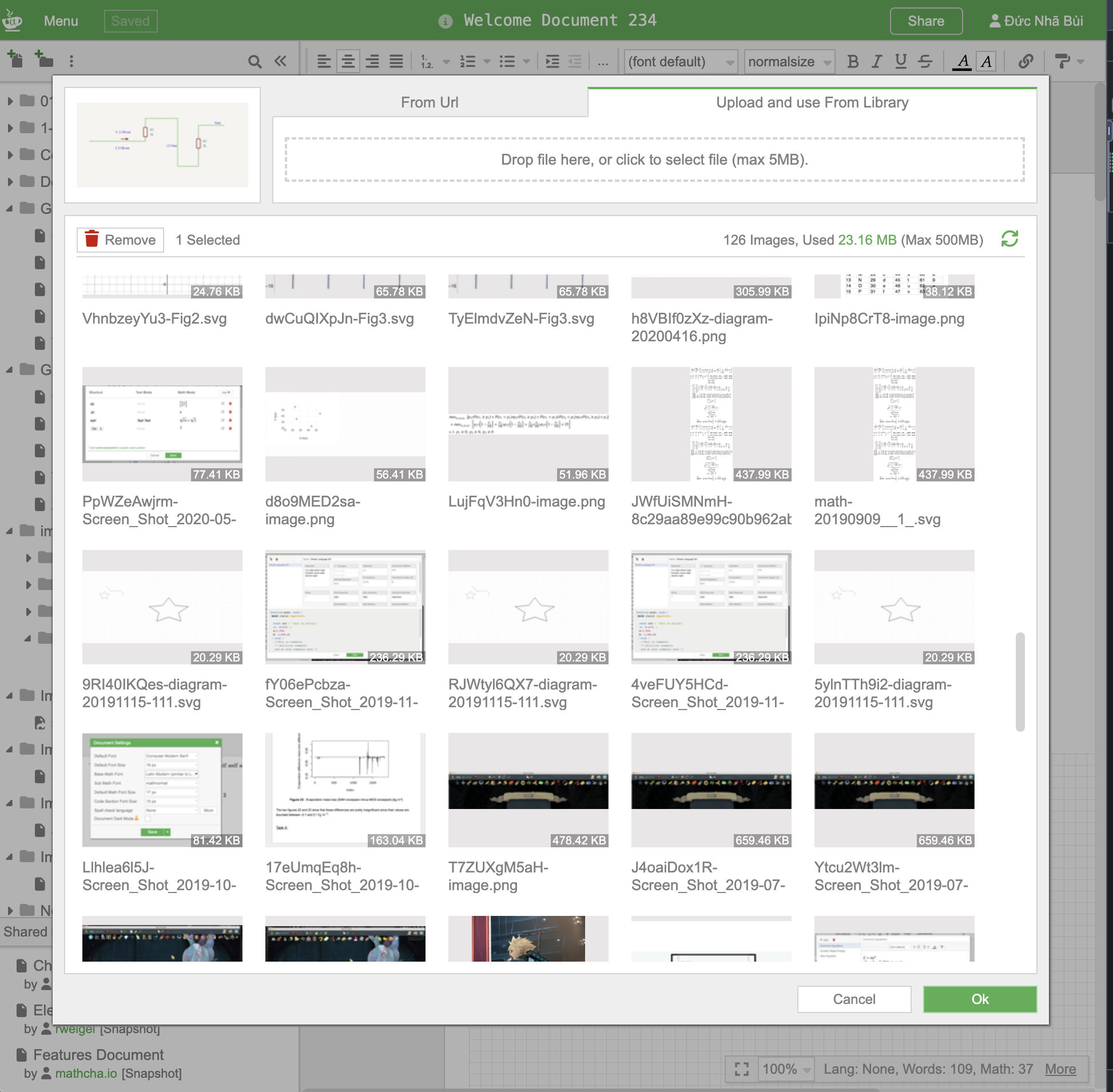
- Upload and use From Library: Select or drag an image from your local machine. The image will be saved to your library.
- From Url: Link to an image already uploaded on the internet or in your own library.
After inserting, your image will appear as shown below:
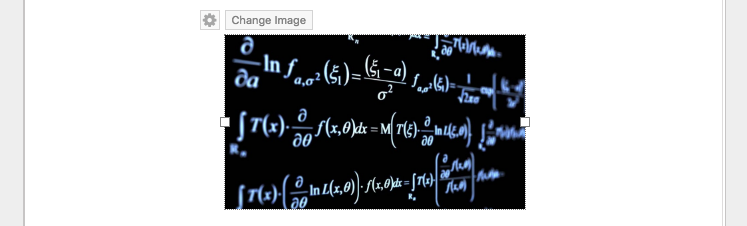
In the left corner, click  to open the picture box options:
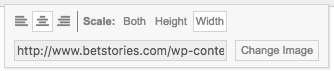
- Click
 to align the image to the left/right/middle.
 - Click [Both] to resize both the width and height of the image.
- Click [Width] to resize only the width of the image.
- Click [Height] to resize only the height of the image.
- Enter the URL of an image in the text box that contains the “Please input an image url” message.
- Click [Change Image] to replace the image in the picture box.
Another type of picture box is [inline-image]. Press \ to open the Suggestion Box, then select [inline-image]. This works the same as [image-container], but the image is smaller and appears on the same line as the text.