Document History
Document History lets you view and restore previous versions of your document. Every time you save, a snapshot is recorded so you can go back to any earlier state.
Opening Document History
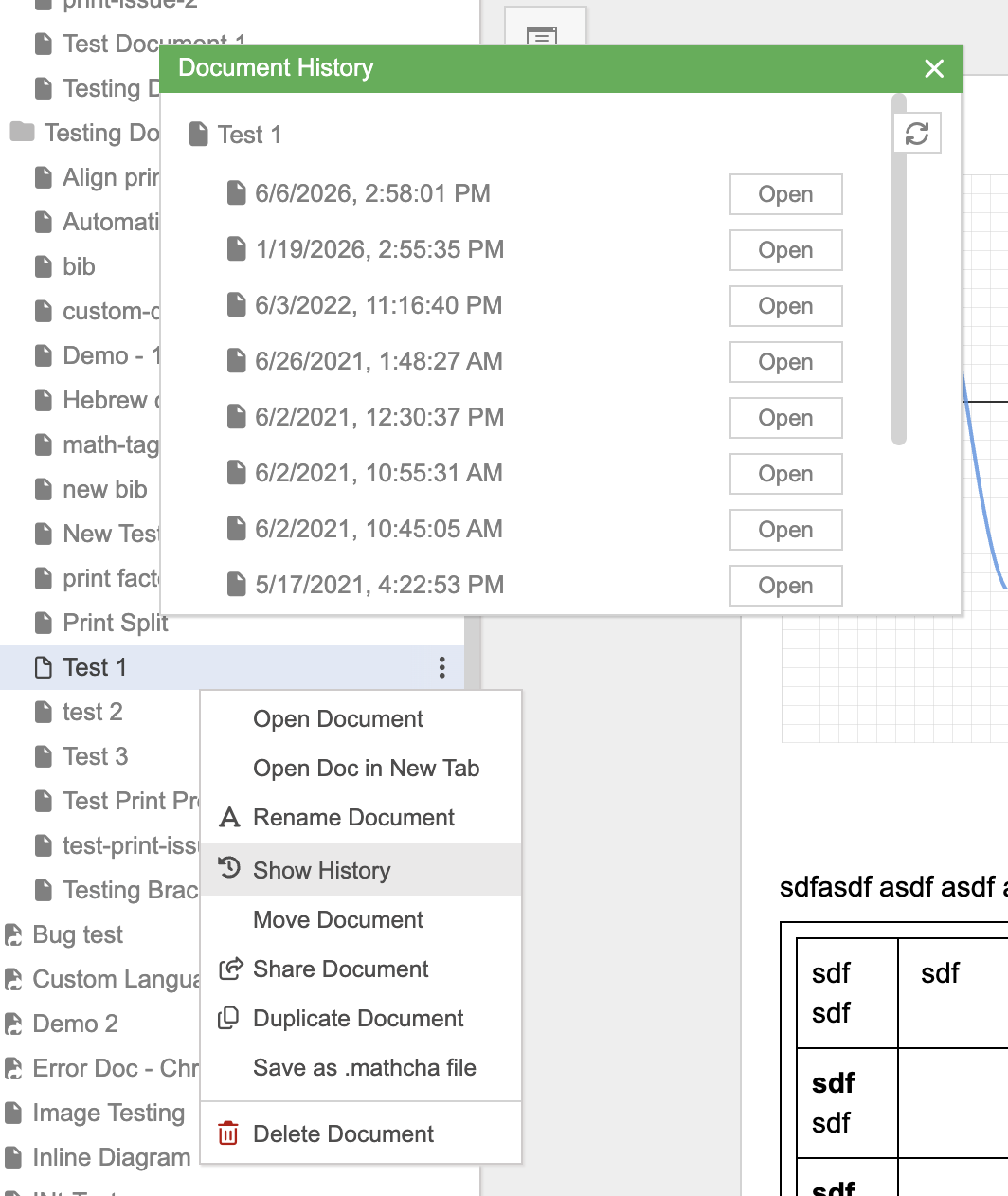
Section titled “Opening Document History”Right-click on a document in the sidebar and select Show History:
The History Panel
Section titled “The History Panel”The Document History panel opens on the right side, listing all saved versions with their timestamps (e.g., “6/6/2026, 2:58:01 PM”). Each entry represents a snapshot of the document at that point in time.
Click on any version to preview it. From there you can choose to restore it, replacing the current document content with that version.
Other Document Actions
Section titled “Other Document Actions”The right-click context menu on a document also provides:
| Action | Description |
|---|---|
| Open Document | Open the document in the current tab |
| Open Doc in New Tab | Open in a new browser tab |
| Rename Document | Change the document name |
| Show History | Open the Document History panel |
| Move Document | Move to a different folder |
| Share Document | Share via link |
| Duplicate Document | Create a copy of the document |
| Save as .mathcha file | Export the document as a .mathcha file |
| Delete Document | Delete the document |