Spell Check
Mathcha includes a built-in spell checker powered by Hunspell. It highlights misspelled words with a red underline and offers correction suggestions through the right-click context menu.
Enabling Spell Check
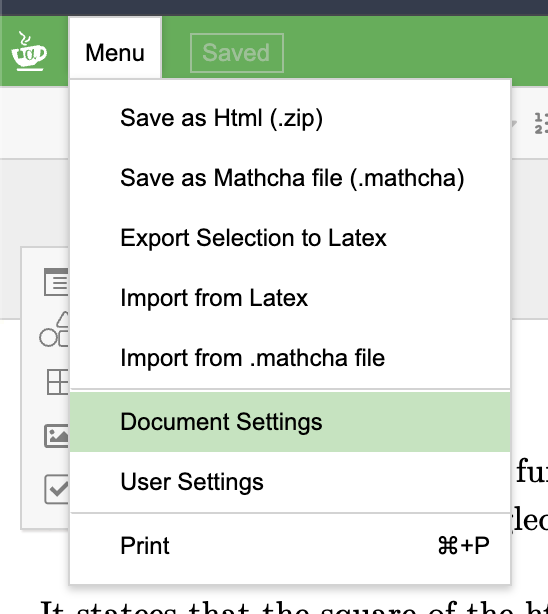
Section titled “Enabling Spell Check”Spell check is disabled by default (language set to None). To enable it, open Document Settings from the Menu:
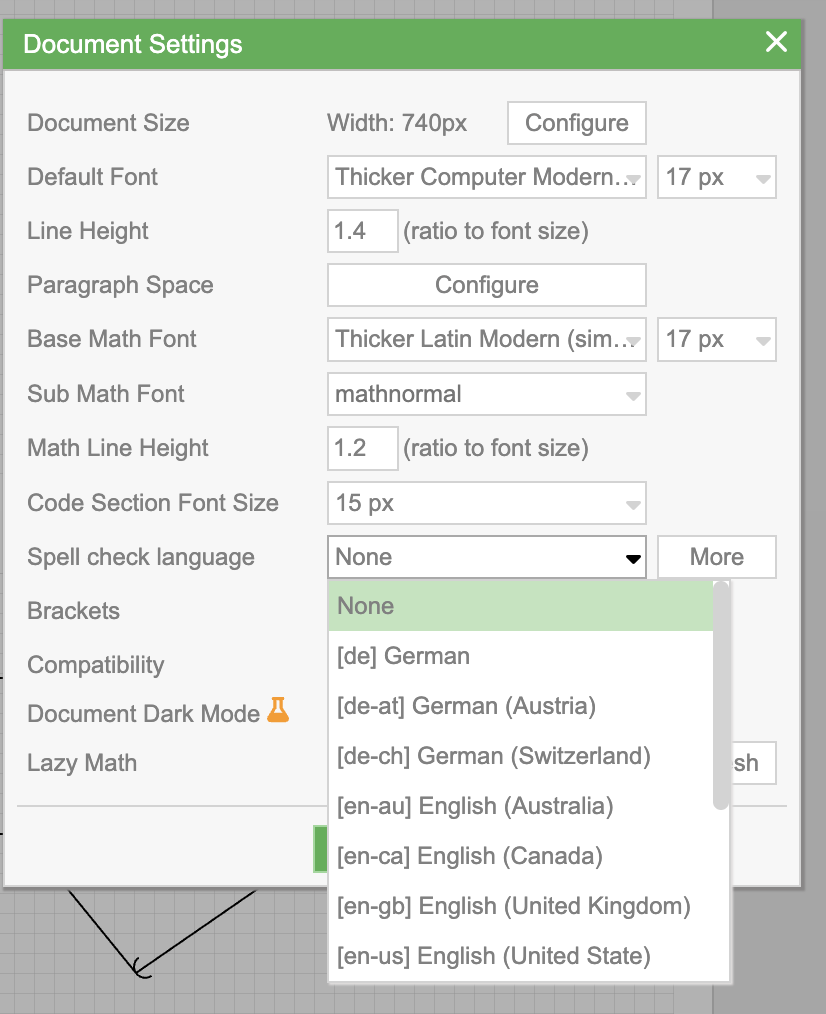
In the Document Settings dialog, find the Spell check language dropdown and select your language:
Supported Languages
Section titled “Supported Languages”The following languages are available out of the box:
| Code | Language |
|---|---|
de | German |
de-at | German (Austria) |
de-ch | German (Switzerland) |
en-au | English (Australia) |
en-ca | English (Canada) |
en-gb | English (United Kingdom) |
en-us | English (United States) |
You can also add custom dictionaries for additional languages (see Adding Custom Dictionaries).
How It Works
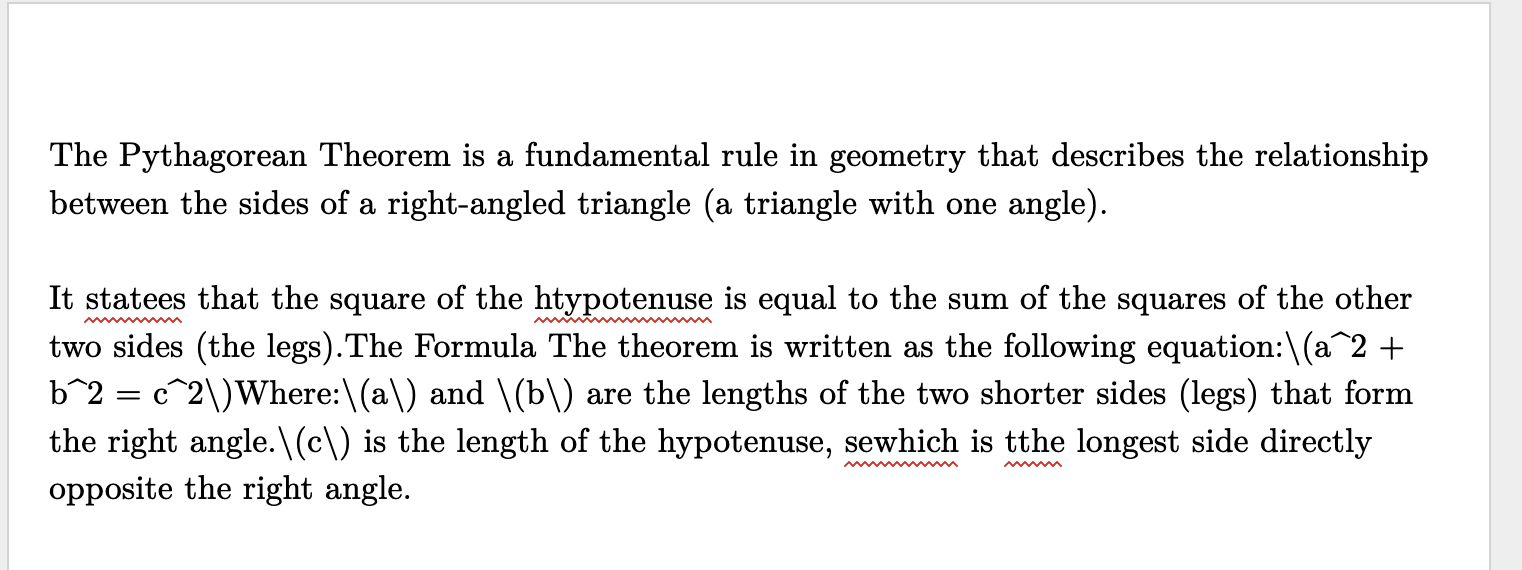
Section titled “How It Works”Once a spell check language is selected, misspelled words are underlined in red:
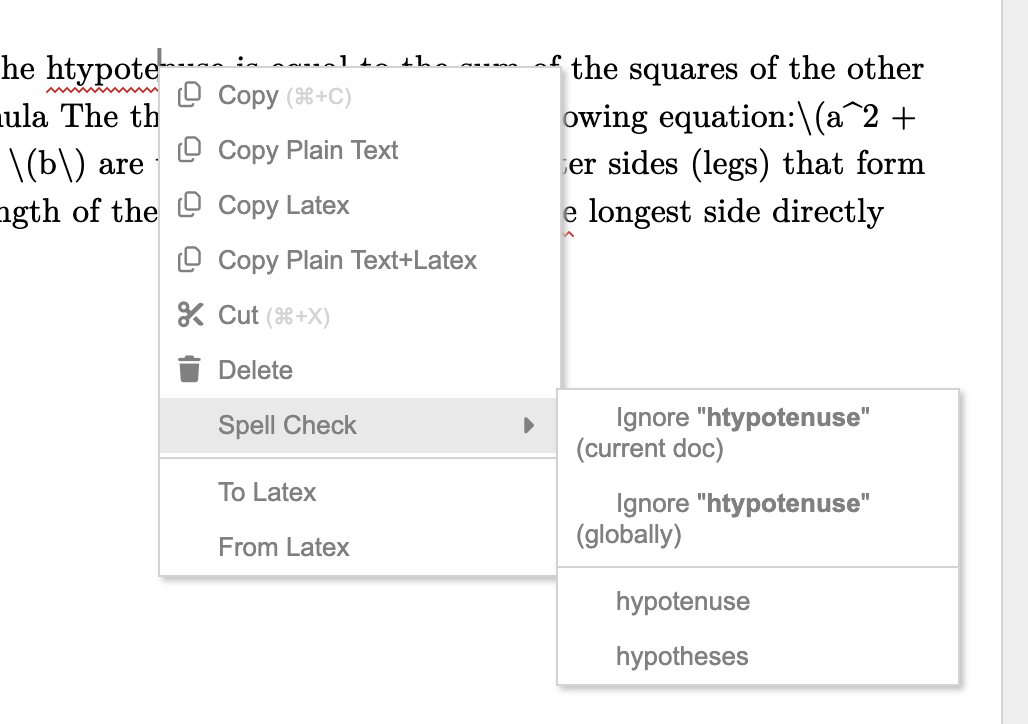
Right-click on a misspelled word to see the Spell Check submenu with:
- Ignore (current doc) — add the word to the ignore list for this document only
- Ignore (globally) — add the word to the global ignore list across all documents
- Suggestions — click a suggestion to replace the misspelled word
Status Bar
Section titled “Status Bar”The status bar at the bottom of the editor shows the current spell check language, word count, and math count:

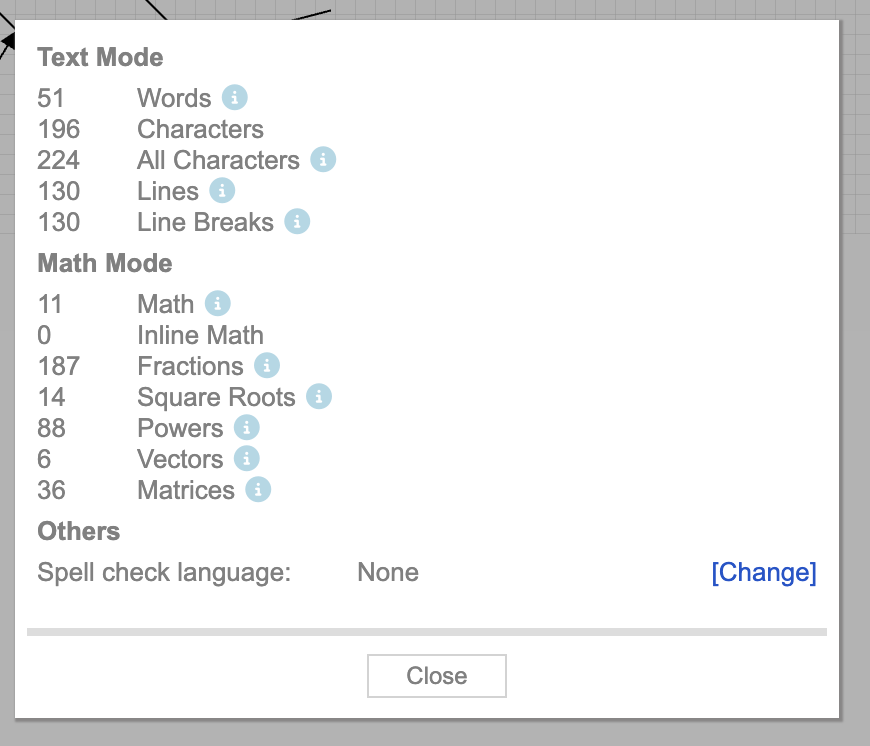
Click More to open a detailed view with word and character statistics, plus a [Change] link to quickly switch the spell check language:
Ignore Lists
Section titled “Ignore Lists”When you ignore a misspelled word, it is added to an ignore list so it will no longer be underlined. There are two levels:
- Per-document — the word is ignored only in the current document
- Global — the word is ignored across all your documents
You can manage the per-document ignore list by clicking the More button next to the spell check language in Document Settings. The ignore dialog lets you add or remove words:
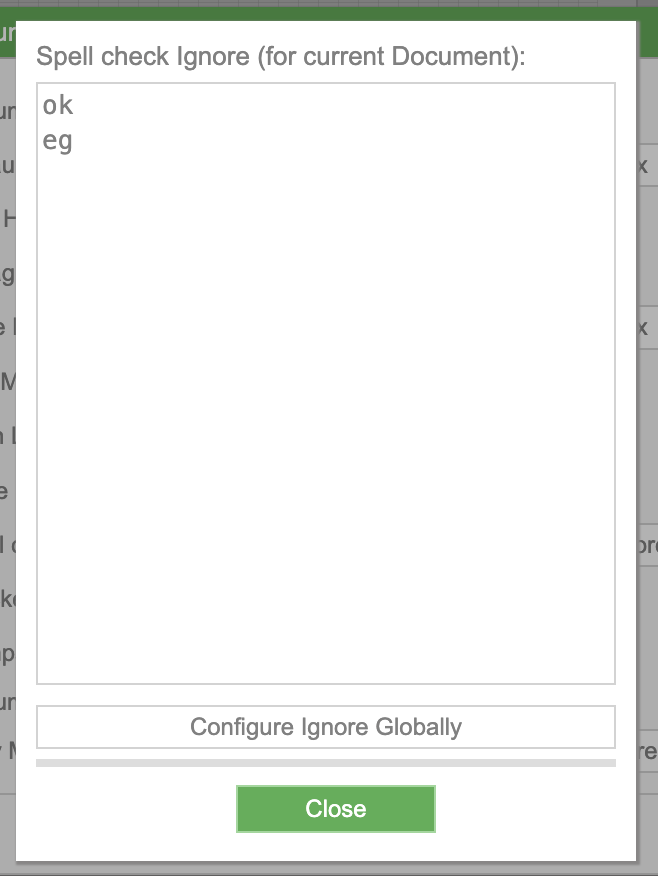
Click Configure Ignore Globally to manage the global ignore list.
Adding Custom Dictionaries
Section titled “Adding Custom Dictionaries”To add support for a language not in the built-in list, click the More button next to the spell check language dropdown in Document Settings. This opens the dictionary manager where you can add a custom Hunspell dictionary.
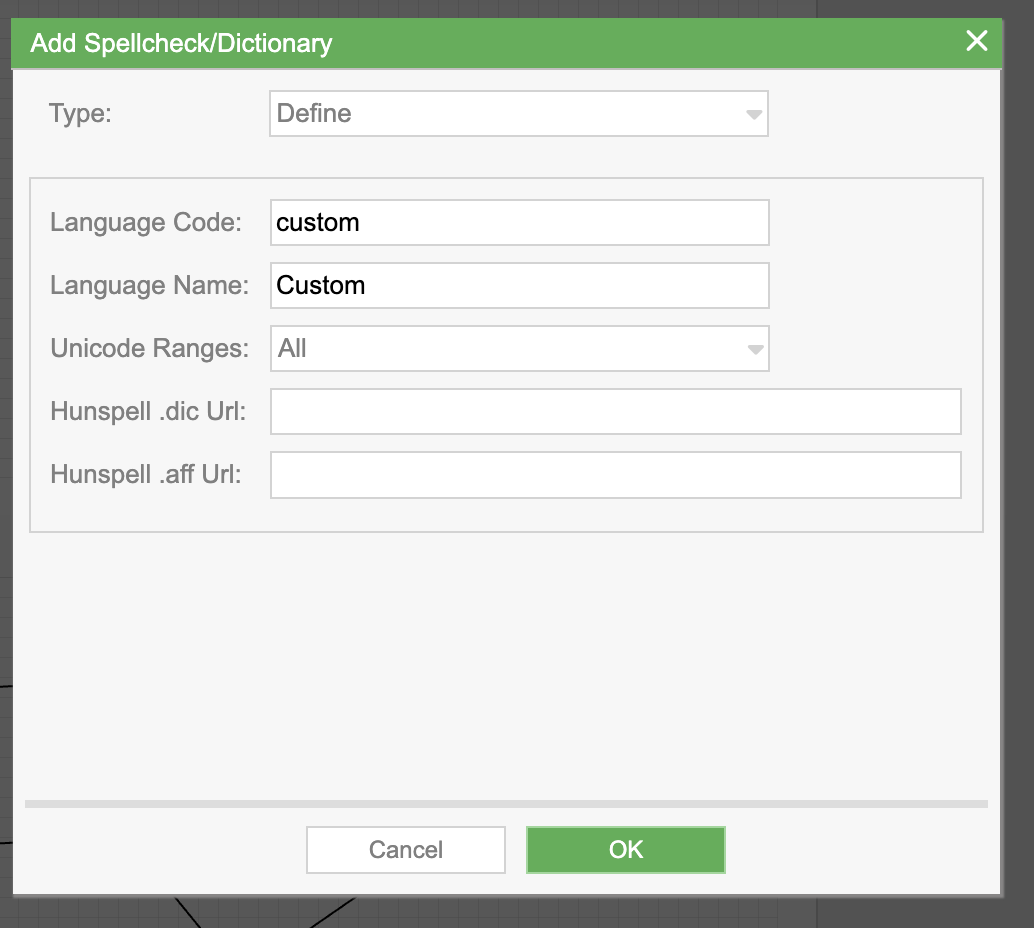
The dialog has two types:
- Preset — select from a built-in language and Mathcha provides the dictionary files automatically
- Define — specify a custom language with your own Hunspell dictionary files
For a custom dictionary, provide:
| Field | Description |
|---|---|
| Language Code | A short identifier (e.g., vi, fr) |
| Language Name | Display name (e.g., Vietnamese, French) |
| Unicode Ranges | Character range filter (default: All) |
| Hunspell .dic Url | URL to the Hunspell .dic dictionary file |
| Hunspell .aff Url | URL to the Hunspell .aff affix/rules file |