Export & Import
Mathcha supports exporting your documents, math expressions, and diagrams in several formats, as well as importing content from LaTeX.
Export to Image
Section titled “Export to Image”To export a diagram or drawing area as an image, click the export icon to open the Image Convert Screen:
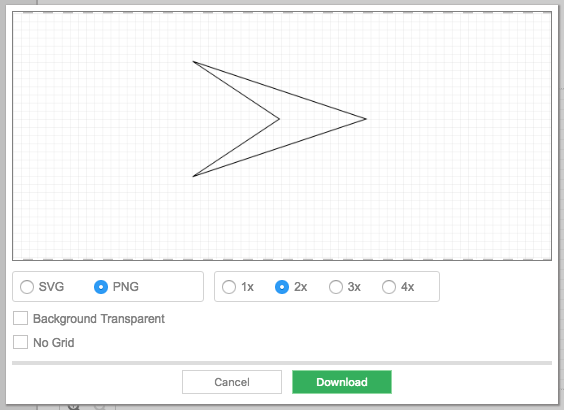
You can choose between SVG, PNG, and PDF formats. Options include:
- Background Transparent — toggle transparent background
- Padding — add padding around the content
- Disable Thicker Math Text — recommended for PDF export
Save as Image (PNG)
Section titled “Save as Image (PNG)”If you are inside Math Mode or a Diagram, you can save that region as an image. Place your cursor inside the formula or diagram and click the Save as Image button on the toolbar to download it.

This feature does not work in Safari due to security restrictions.
Export to SVG
Section titled “Export to SVG”Click the SVG export button to open the Image Convert Screen (same dialog as Export to Image above) with SVG selected as the default format.
Export to LaTeX
Section titled “Export to LaTeX”Export your document content as LaTeX code:
- Math Mode LaTeX + Plain Text is the supported conversion option
- Select any part of the text, then click the export icon to export a section
- Or use Menu > Export Selection to Latex to export the whole document or selection
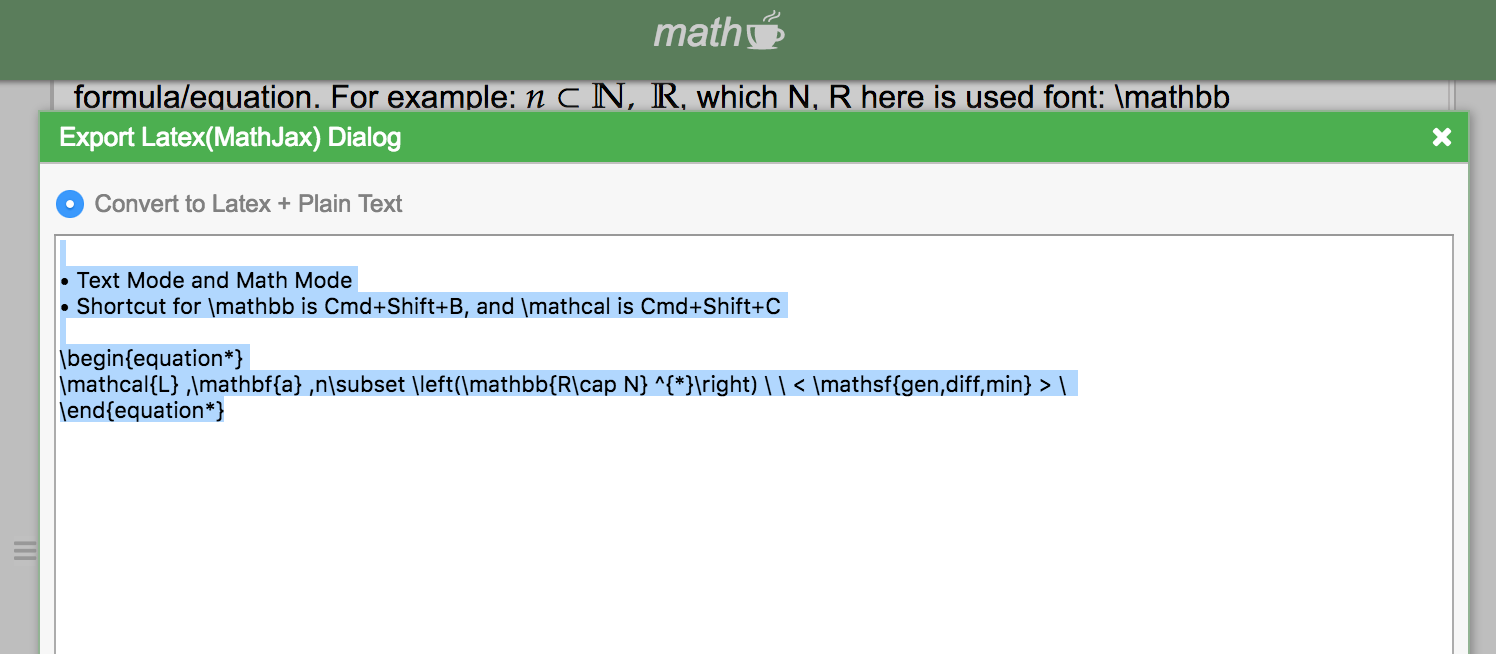
Converting text-only content (without math) to LaTeX is not supported.
Important: LaTeX export only supports basic mathematical expressions and plain text. It does not cover the full TeX system — features like custom packages, bibliography, cross-referencing, and advanced LaTeX commands are not supported. If you need full LaTeX compatibility, consider using a dedicated LaTeX editor.
Export to TikZ
Section titled “Export to TikZ”For diagrams and drawing areas, click the TikZ export button to open the TikZ Convert Screen:
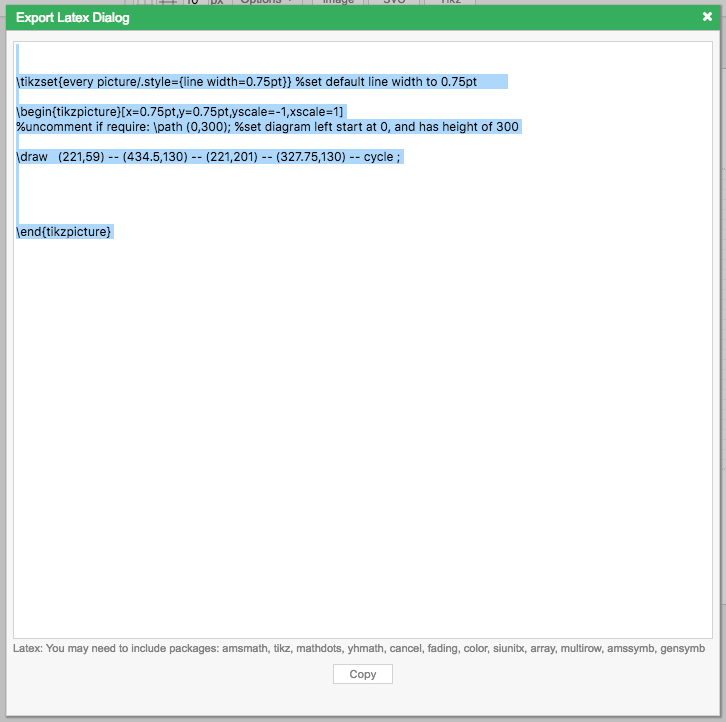
This generates TikZ code that can be used directly in LaTeX documents.
Import from LaTeX
Section titled “Import from LaTeX”To import LaTeX content into your document, place the cursor in any text in Text Mode, then either:
- Open the suggestion box and type
\from-latex - Or go to Menu > Import from Latex
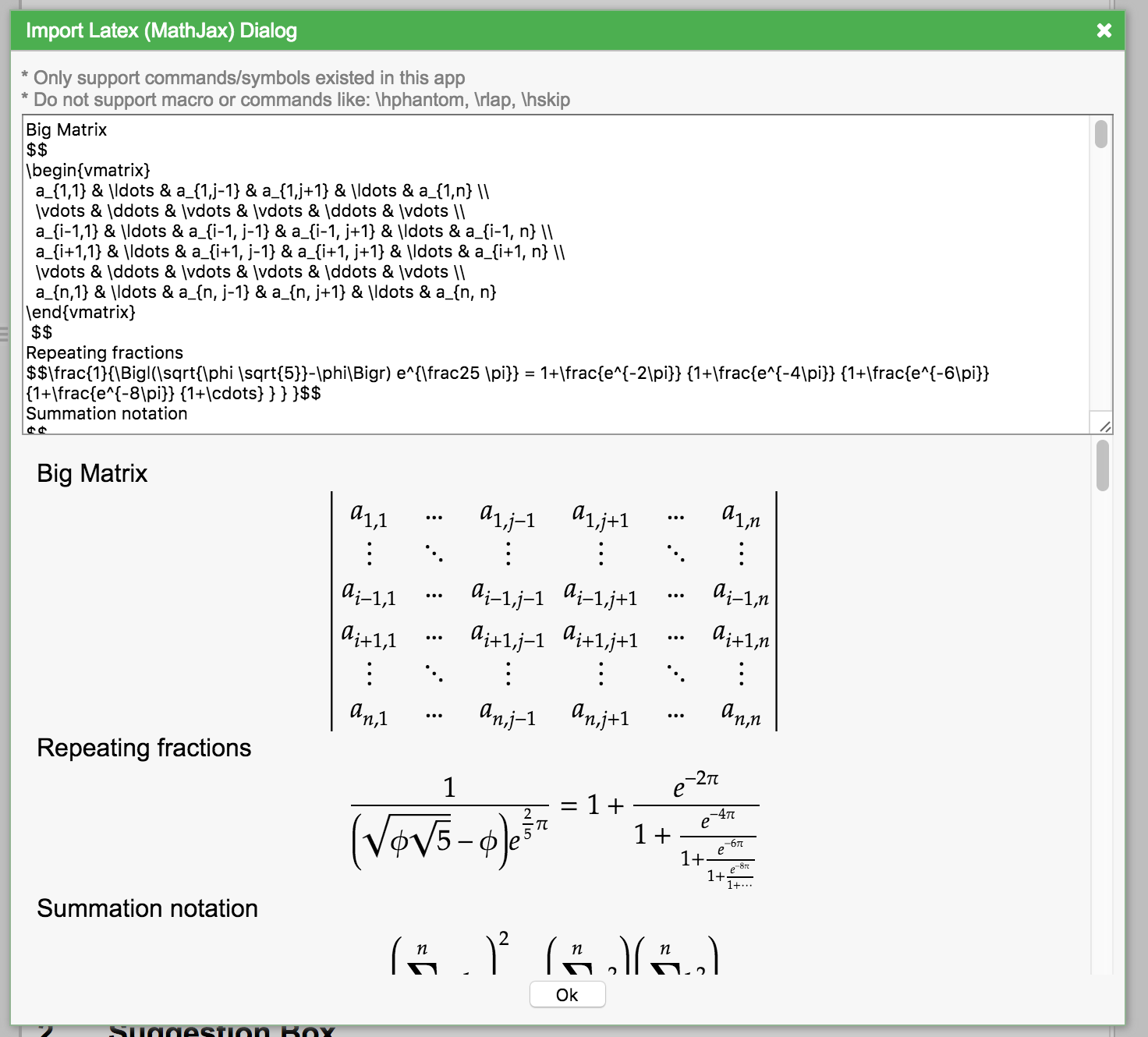
- LaTeX import can only be inserted in Text Mode (not inside Math Mode)
- Most LaTeX symbols used in MathJax are supported
- LaTeX is parsed within
$ $or$$ $$pairs; text outside these pairs is treated as normal text
Important: LaTeX import is limited to basic mathematical expressions. It does not support the full TeX system — custom macros, packages, environments, and advanced LaTeX constructs will not be recognized.
Export / Import .mathcha File
Section titled “Export / Import .mathcha File”You can also export and import entire documents as .mathcha files, which preserve all content including math, diagrams, and images. See Mathcha File (.mathcha) for details.