Basic
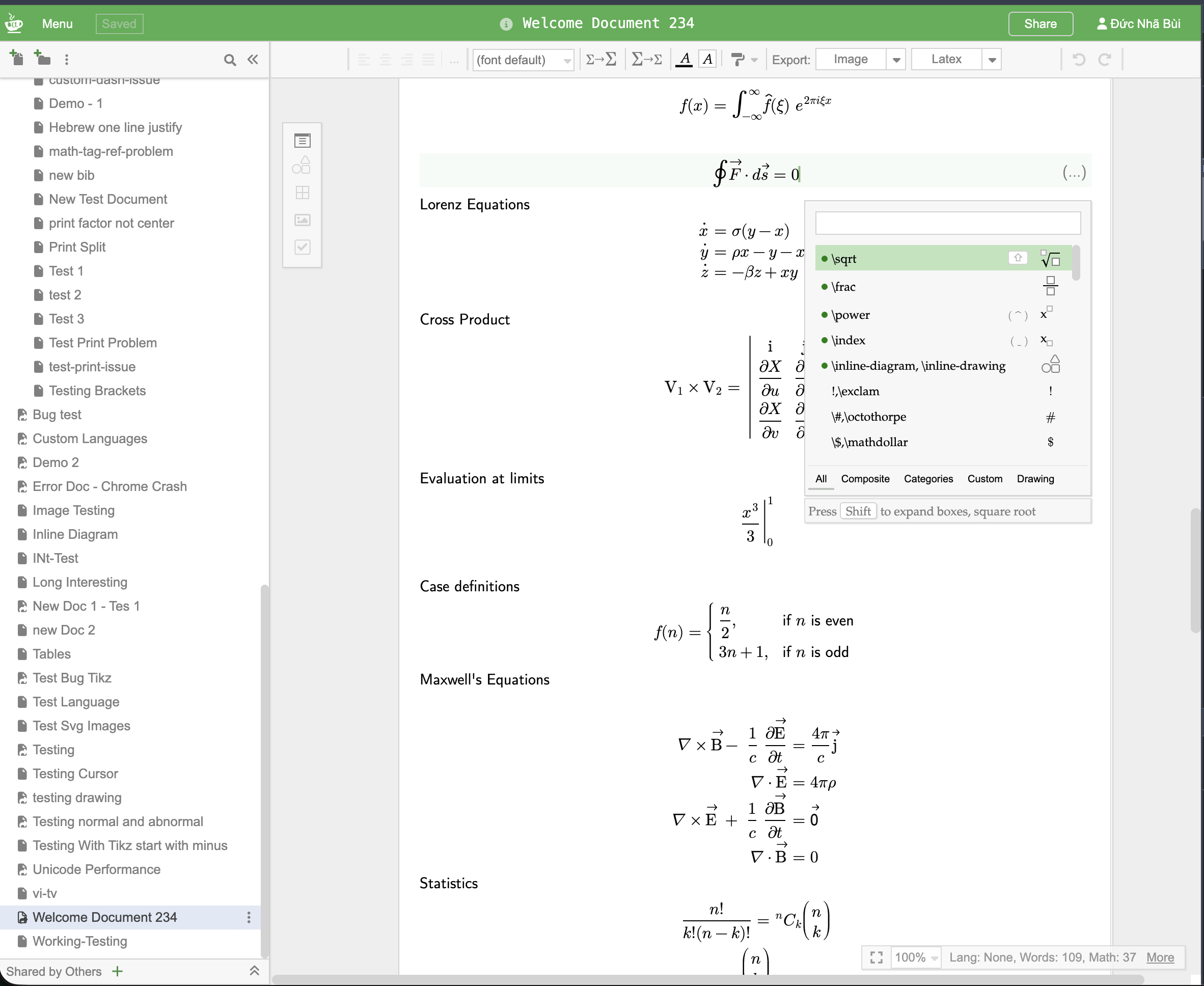
The most important thing to understand when using Mathcha is the difference between Text Mode, Math Mode, and Suggestion Box. In summary:
- Text Mode: An area for entering normal text, like other rich text editors.
- Math Mode: An area for entering mathematical symbols. You can only enter Math Mode from Text Mode by inserting
\math-containeror\inline-math. - Suggestion Box: Appears when you press the
\key. The content of theSuggestion Boxdiffers depending on whichMode(Text ModeorMath Mode) you are in. It helps you quickly insert math symbols (or other components) into a document.
Text Mode
Section titled “Text Mode”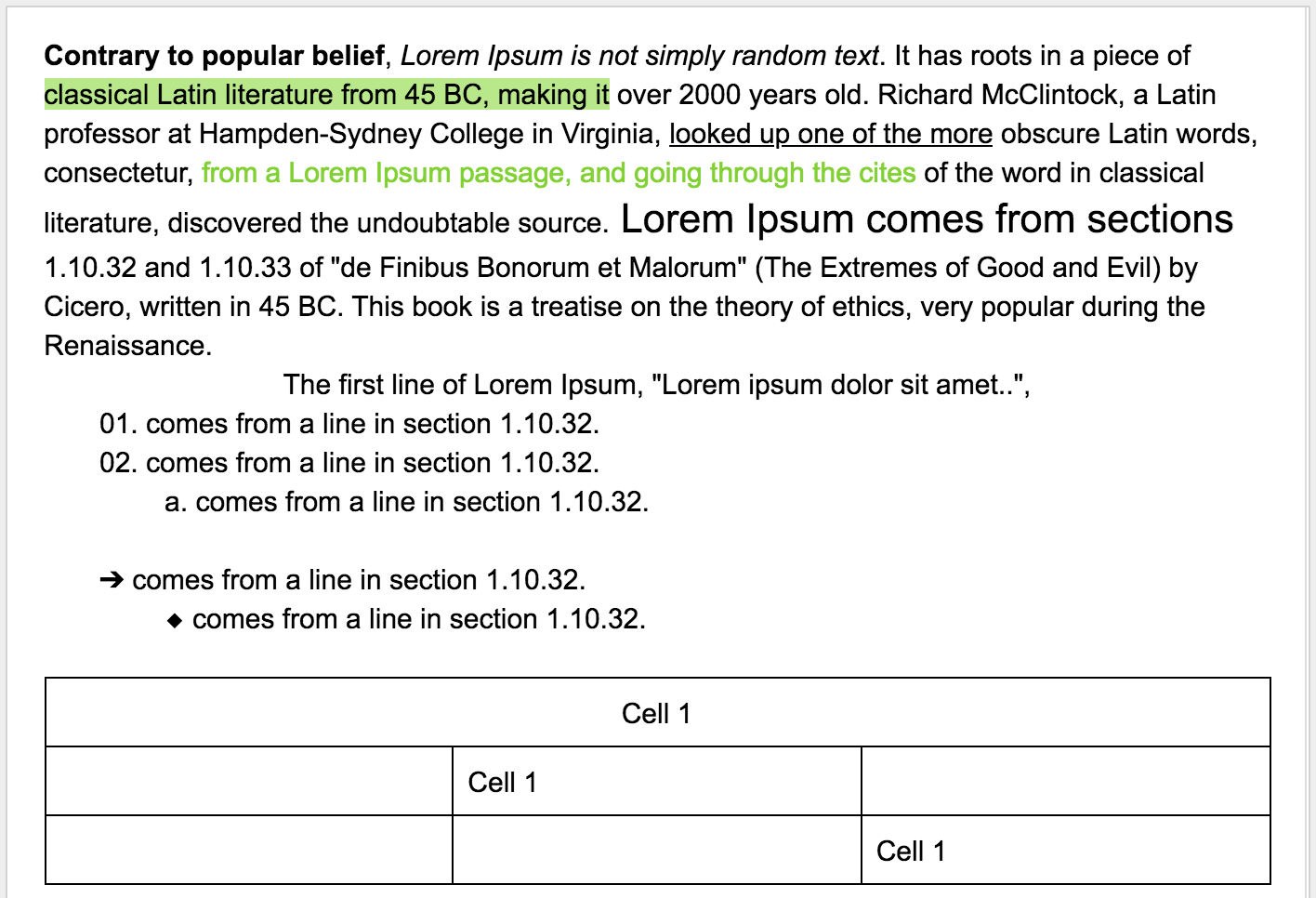
When you first open an empty document, you are in Text Mode. Like other text editors, you will see a Toolbar at the top of the document for adjusting text alignment, color, bold, and more.

See Text Mode for more info.
Suggestion Box
Section titled “Suggestion Box”When you press \ on the keyboard, a box appears called the Suggestion Box. You will primarily use this to search for symbols/components and insert them into your document.
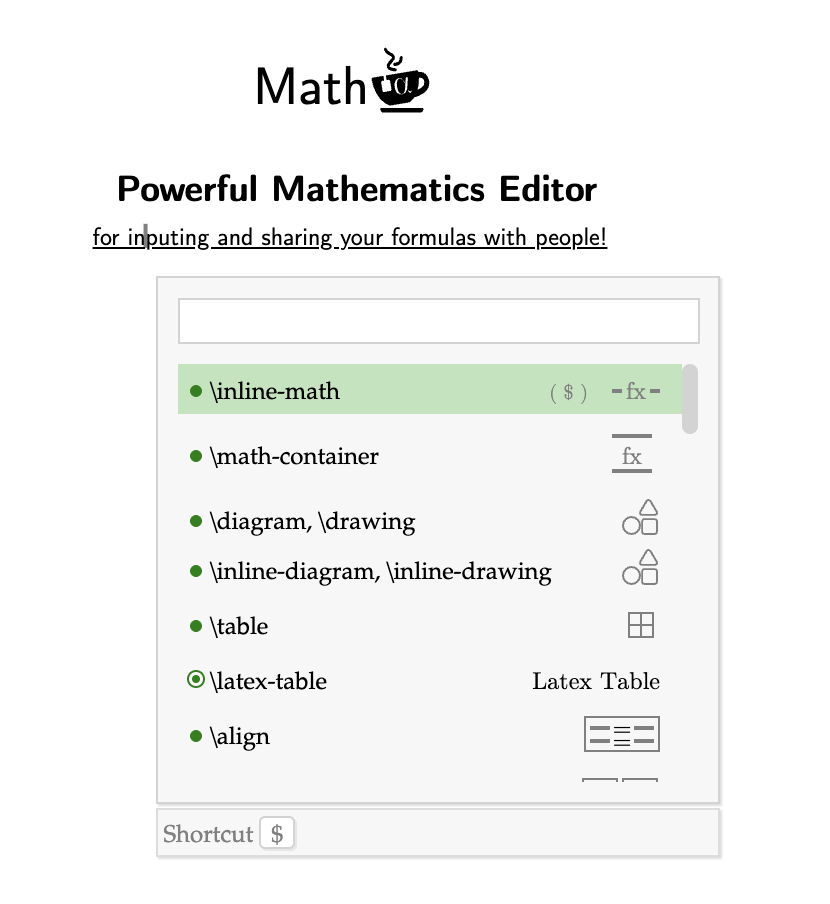
The content of the Suggestion Box differs depending on whether you are in Text Mode or Math Mode. Below is an example in Math Mode:
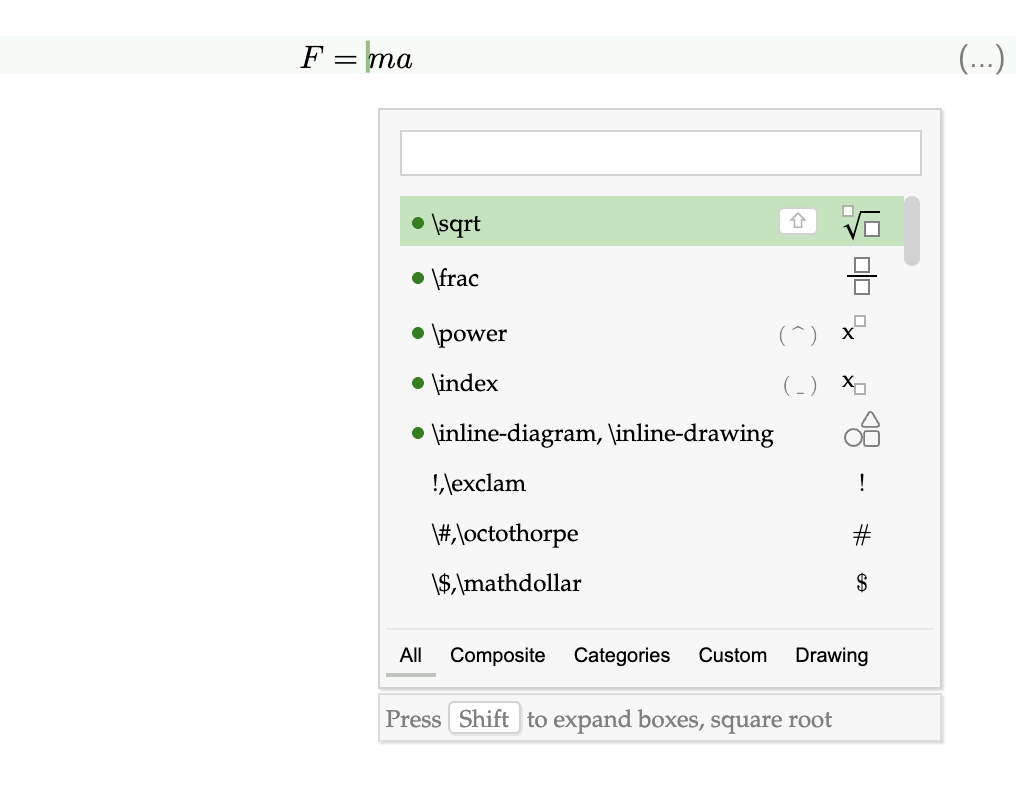
The Suggestion Box in Math Mode has more items and options specifically for mathematical input. Each item is described in detail in other sections.
Math Mode
Section titled “Math Mode”By default, you are in Text Mode. Select \math-container in the Suggestion Box to insert a Math Mode area.
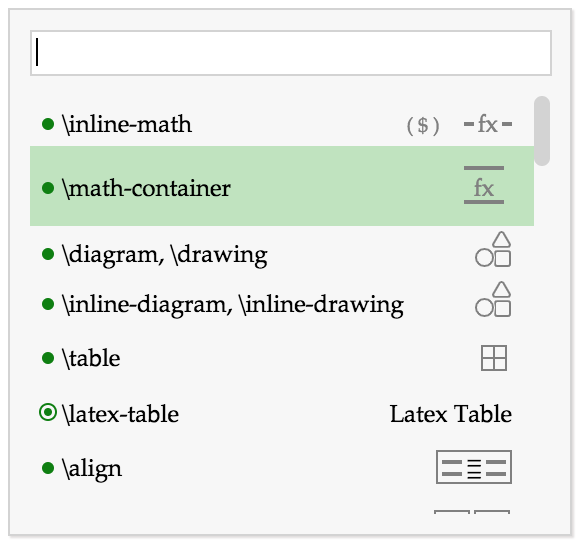
With \math-container, all symbols/characters in this area will be centered (you cannot change text alignment in Math Mode), and spacing between characters is adjusted automatically by Mathcha.
Whenever you see a light green background and green cursor, that indicates you are in Math Mode.
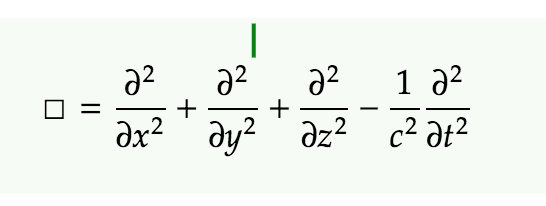
Open the Suggestion Box in this Math Mode area, and you will see more symbols/components/operators. These items are explained in other sections.
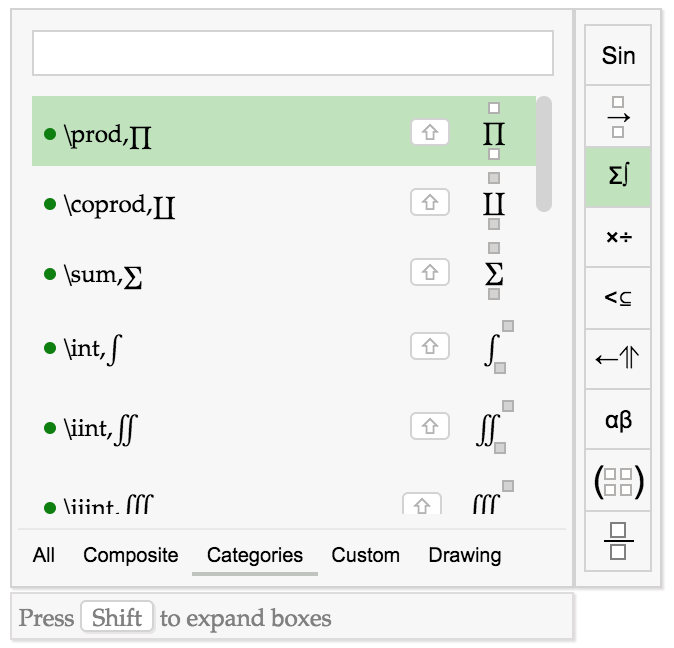
Draw to Find Symbol
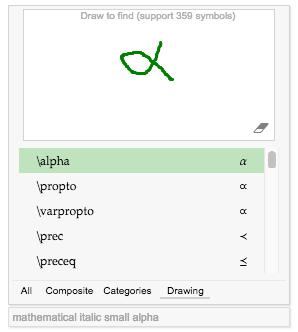
Section titled “Draw to Find Symbol”If you don’t know the name of a symbol, you can draw it. In the Suggestion Box, switch to the Drawing tab and draw the symbol you’re looking for. Mathcha will recognize your drawing and suggest matching symbols.