Document Management
The sidebar on the left side of the editor is where you organize all your documents and folders.
The Sidebar
Section titled “The Sidebar”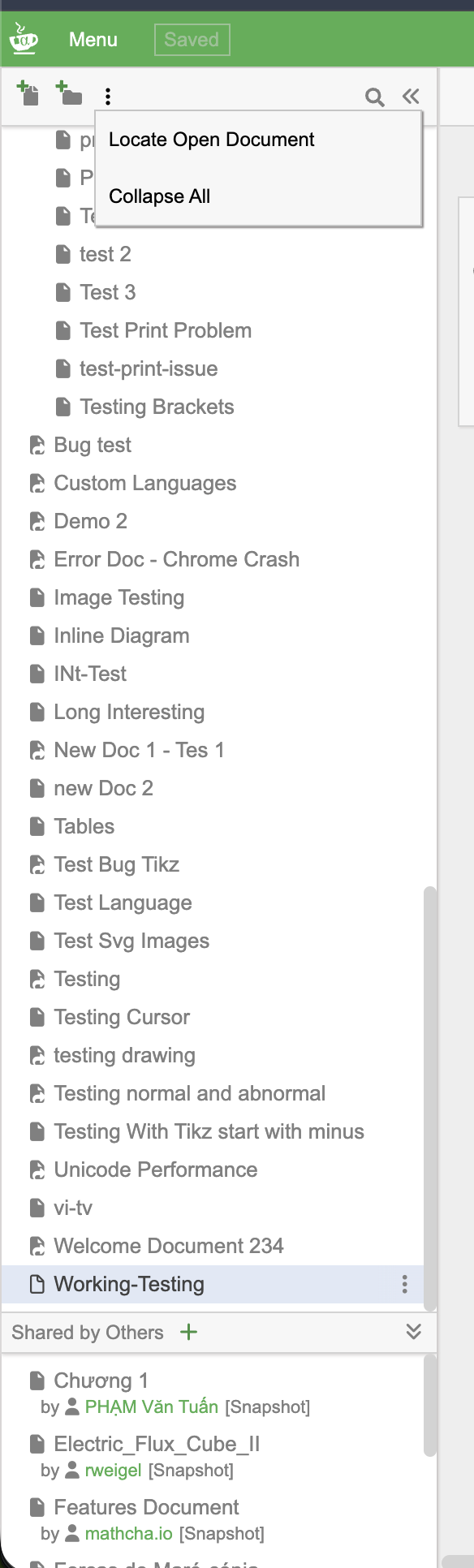
At the top of the sidebar you’ll find:
- New Document button — create a new document at the root level
- New Folder button — create a new folder at the root level
- ⋮ (more) menu — with options to Locate Open Document (scroll to and highlight the currently open document) and Collapse All folders
- 🔍 Search — search for documents by name
- « — collapse/expand the sidebar
Folders
Section titled “Folders”Folders let you organize documents into groups. Click the arrow next to a folder to expand or collapse it.
Right-click a folder (or click its ⋮ menu) to see folder actions:
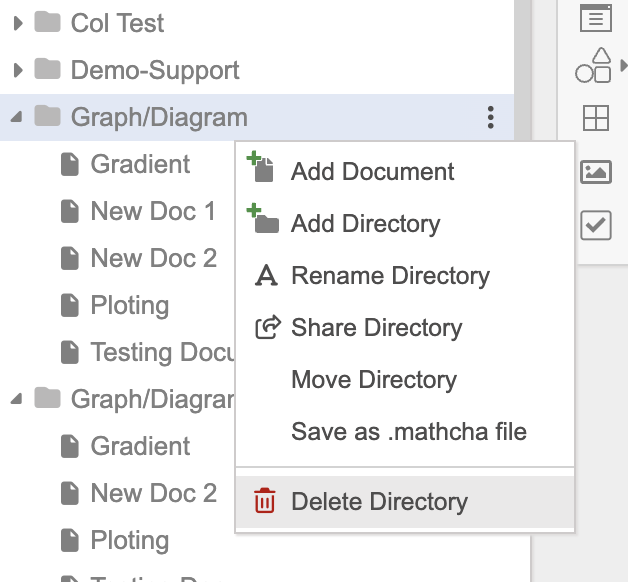
| Action | Description |
|---|---|
| Add Document | Create a new document inside this folder |
| Add Directory | Create a subfolder |
| Rename Directory | Change the folder name |
| Share Directory | Share the entire folder via link |
| Move Directory | Move the folder to a different location |
| Save as .mathcha file | Export the folder and all its documents |
| Delete Directory | Delete the folder and its contents |
Documents
Section titled “Documents”Right-click a document (or click its ⋮ menu) to see document actions:
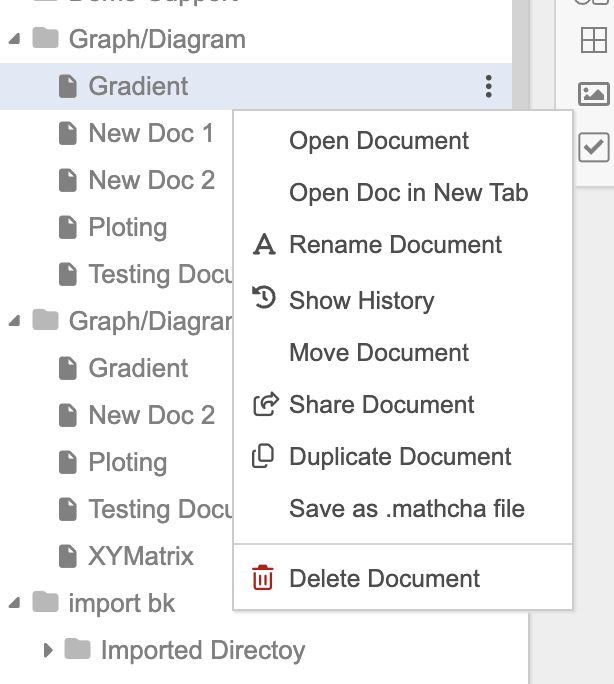
| Action | Description |
|---|---|
| Open Document | Open in the current tab |
| Open Doc in New Tab | Open in a new browser tab |
| Rename Document | Change the document name |
| Show History | View previous versions (see Document History) |
| Move Document | Move to a different folder |
| Share Document | Share via link |
| Duplicate Document | Create a copy |
| Save as .mathcha file | Export as a .mathcha file (see Mathcha File) |
| Delete Document | Delete the document |
Drag and Drop
Section titled “Drag and Drop”You can drag documents and folders to rearrange them or move them into other folders:
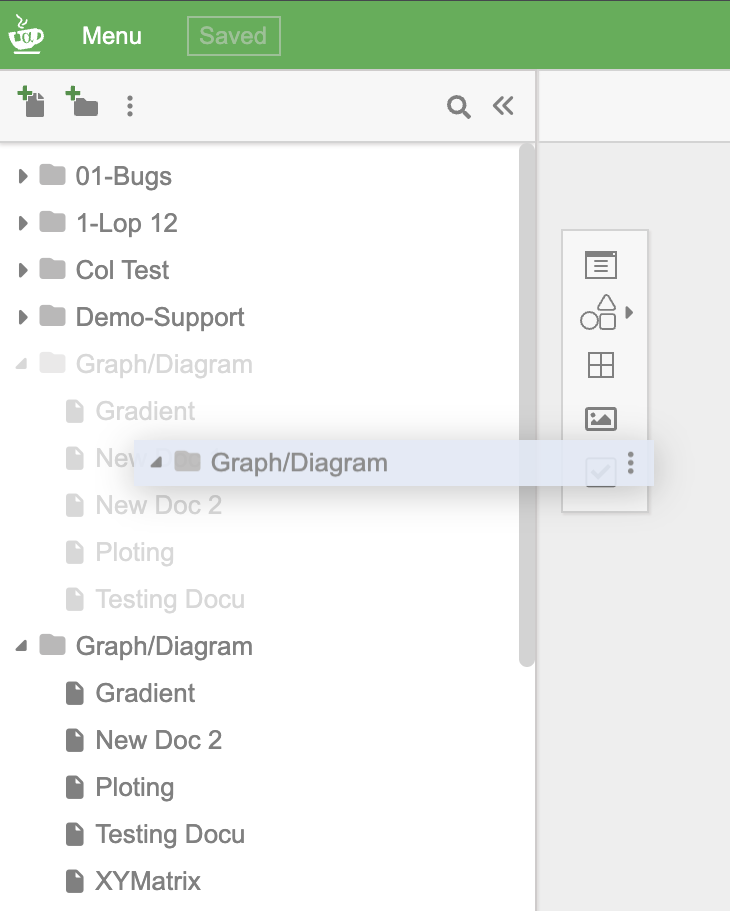
Searching Documents
Section titled “Searching Documents”Click the 🔍 icon at the top of the sidebar to open the search bar. Type a search term and matching documents are shown with the search text highlighted:
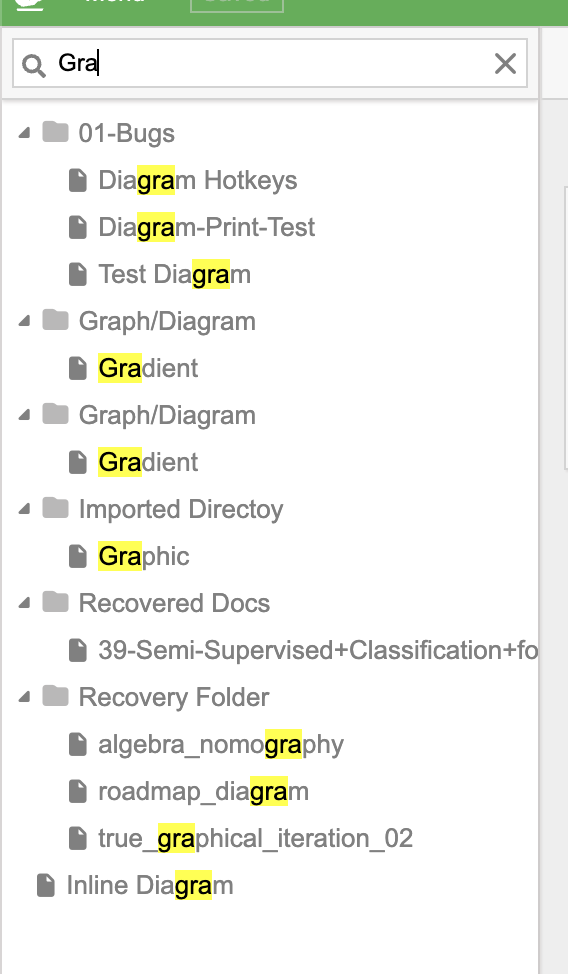
The search filters across all folders and shows results in their folder hierarchy.
Shared by Others
Section titled “Shared by Others”Below your own documents, the Shared by Others section lists documents that other users have shared with you. Each entry shows the document name, the author, and the sharing type (e.g., [Snapshot]):
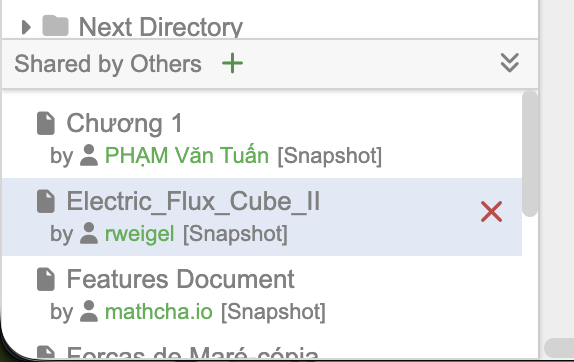
Click the + button next to “Shared by Others” to add a shared document by its link. Click the ✕ on a shared document to remove it from your list.