CAS Dialog
The CAS Dialog is a sidebar panel that provides Computer Algebra System (CAS) operations powered by SymPy. It lets you perform symbolic math operations — simplify, factor, differentiate, integrate, and more — directly on math expressions in your document.
Opening the CAS Dialog
Section titled “Opening the CAS Dialog”The CAS Dialog is not open by default. To open it, type \cas-dialog in the suggestion box and select it from the list.
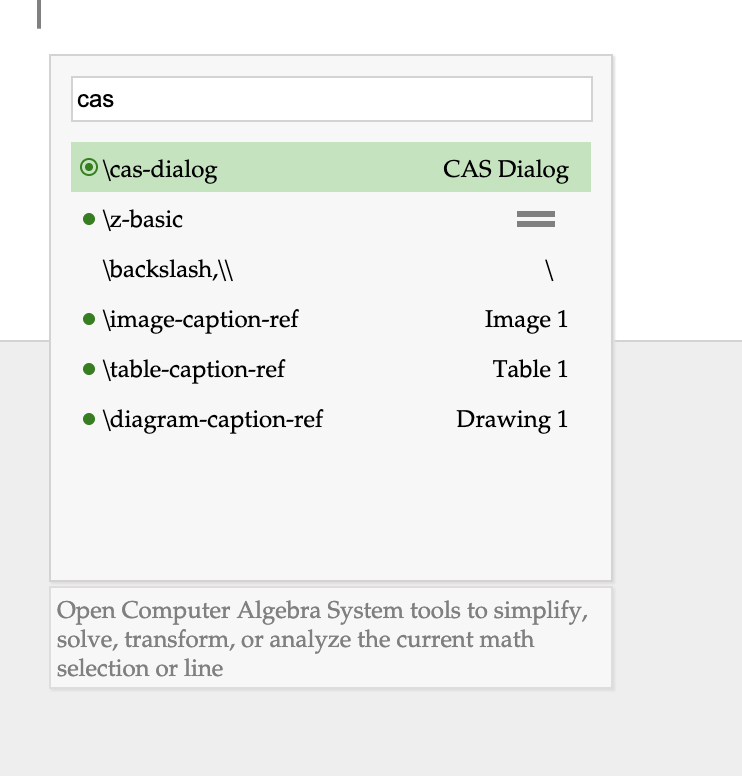
Once opened, the CAS Dialog appears as a panel on the right side of the editor and stays visible for the rest of your session.
How to Use
Section titled “How to Use”- Type a math expression in your document (using inline math
$or a math container). - Place your cursor inside the math expression so the editor is in math mode.
- Click an action in the CAS Dialog panel (e.g., Factor, Simplify).
- Click the Run button that appears next to the action.
- The result replaces your current expression.
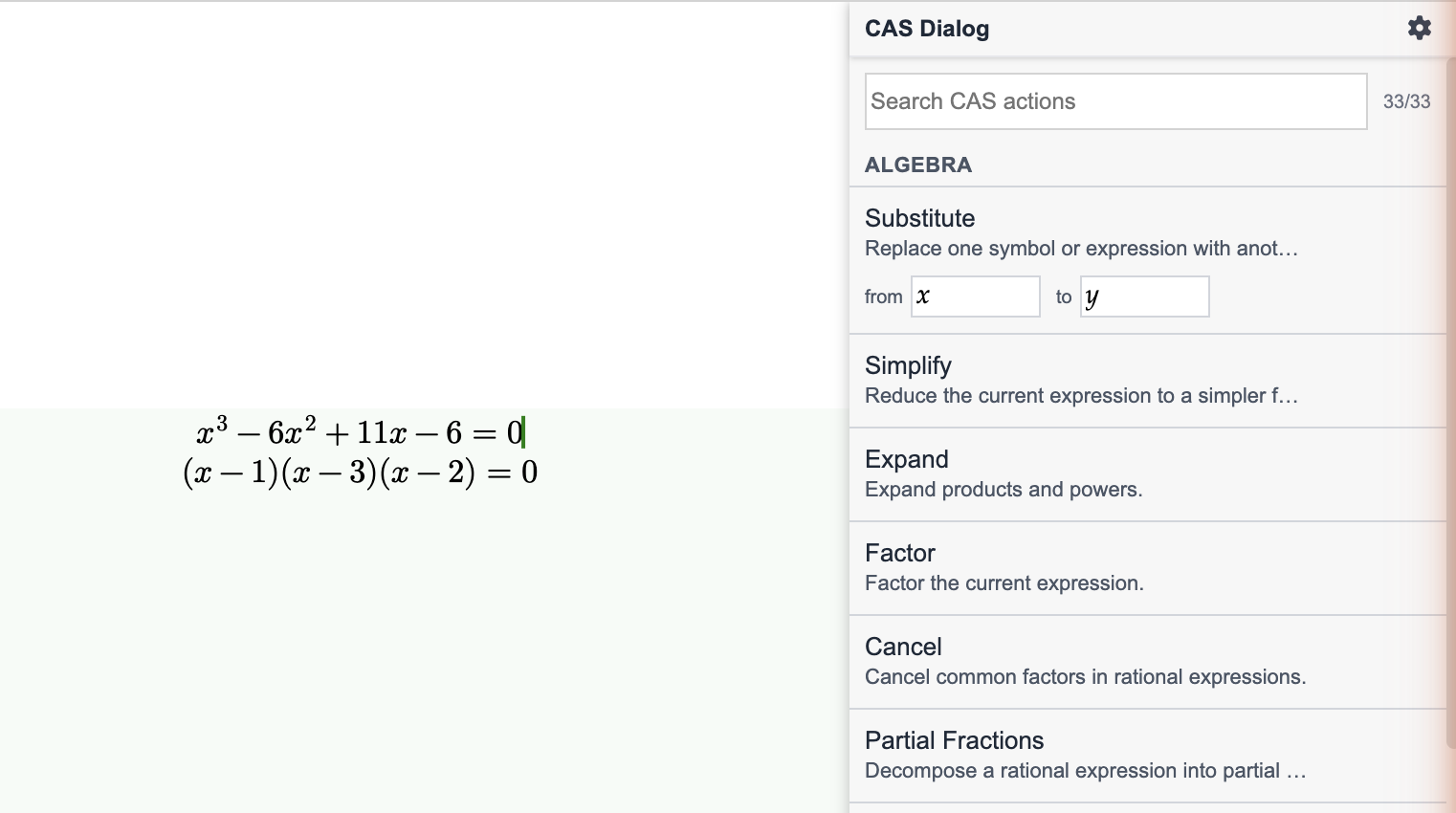
Your cursor must be inside a math expression (math mode) for CAS actions to work. If you see the warning “Current selection is not in math mode”, click back into your math expression first.
The CAS Dialog Panel
Section titled “The CAS Dialog Panel”The panel has a search bar at the top to filter through all 33 available actions. Actions are organized into four categories.
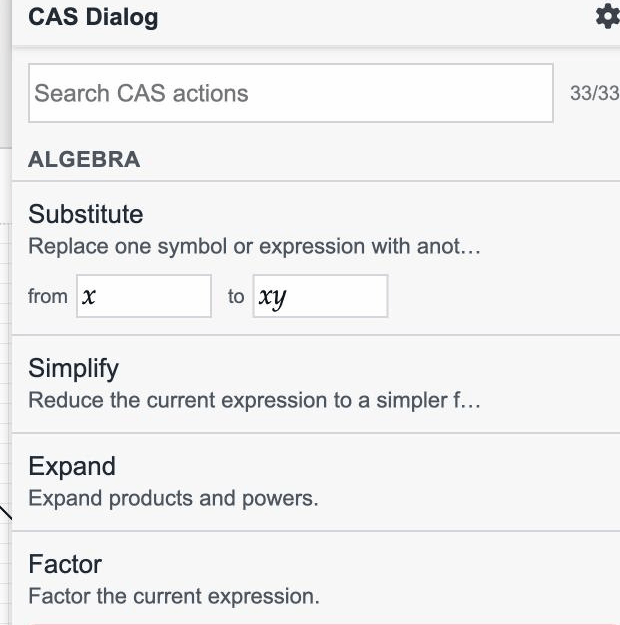
Algebra
Section titled “Algebra”| Action | Description | Parameters |
|---|---|---|
| Substitute | Replace one symbol or expression with another | from, to |
| Simplify | Reduce the expression to a simpler form | — |
| Expand | Expand products and powers | — |
| Factor | Factor the expression | — |
| Cancel | Cancel common factors in rational expressions | — |
| Partial Fractions | Decompose a rational expression into partial fractions | — |
| Together | Combine terms into a common denominator | — |
| Trig Simplify | Simplify trigonometric expressions | — |
| Power Simplify | Combine powers with related bases or exponents | — |
| Radical Simplify | Simplify radicals and rationalized denominators | — |
| Rational Simplify | Simplify rational expressions into a canonical form | — |
| Combinatorial Simplify | Simplify combinatorial expressions | — |
| Sign Simplify | Simplify signs in expressions | — |
| Power Denest | Denest powers where valid | — |
| Log Combine | Combine logarithms where valid | — |
| Expand Trig | Expand trigonometric functions | — |
| Expand Log | Expand logarithms where valid | — |
| Expand Power Base | Expand powers over products where valid | — |
| Collect | Collect terms with respect to a variable | var |
| Solve | Solve an equation or expression | var |
Calculus
Section titled “Calculus”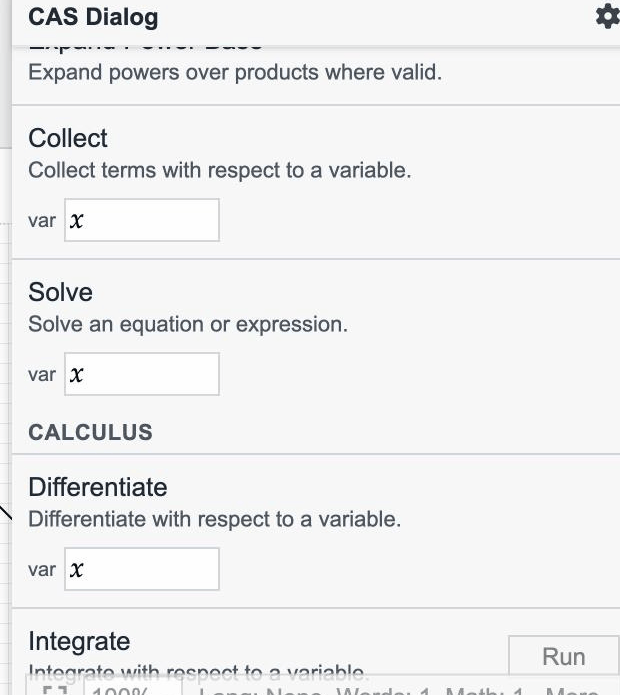
| Action | Description | Parameters |
|---|---|---|
| Differentiate | Differentiate with respect to a variable | var |
| Integrate | Integrate with respect to a variable | var |
| Limit | Evaluate a limit | var, to |
| Sum | Compute a symbolic sum with bounds | var, from, to |
| Product | Compute a symbolic product with bounds | var, from, to |
Matrices
Section titled “Matrices”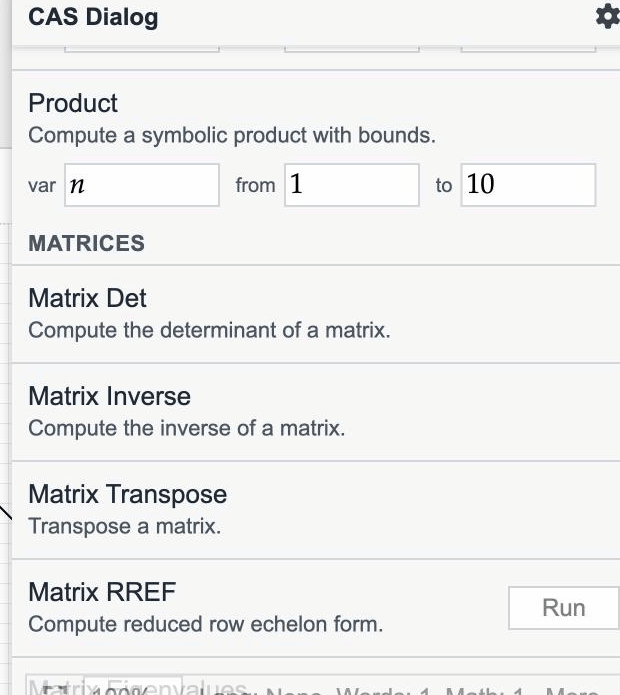
| Action | Description |
|---|---|
| Matrix Det | Compute the determinant of a matrix |
| Matrix Inverse | Compute the inverse of a matrix |
| Matrix Transpose | Transpose a matrix |
| Matrix RREF | Compute reduced row echelon form |
| Matrix Eigenvalues | Compute matrix eigenvalues |
| Matrix Eigenvectors | Compute matrix eigenvectors |
Assumptions
Section titled “Assumptions”| Action | Description | Parameters |
|---|---|---|
| Ask Predicate | Ask SymPy whether a predicate is true for the expression | — |
| Refine | Refine the expression under an assumption | assuming (e.g., positive(x)) |
Action Parameters
Section titled “Action Parameters”Some actions have input fields that let you configure the operation:
- var — the variable to operate with respect to (default:
x). Used by Differentiate, Integrate, Limit, Collect, Solve, Sum, and Product. - from / to — bounds for Sum and Product (default:
1to10), or the substitution values for Substitute. - assuming — an assumption expression for Refine (e.g.,
positive(x)).
Searching Actions
Section titled “Searching Actions”Use the search bar at the top of the CAS Dialog to quickly find an action by name. The counter (e.g., “33/33”) shows how many actions match the current search query.