User Settings
User Settings control editor behavior across all your documents. These preferences are saved to your account and apply every time you use Mathcha.
Opening User Settings
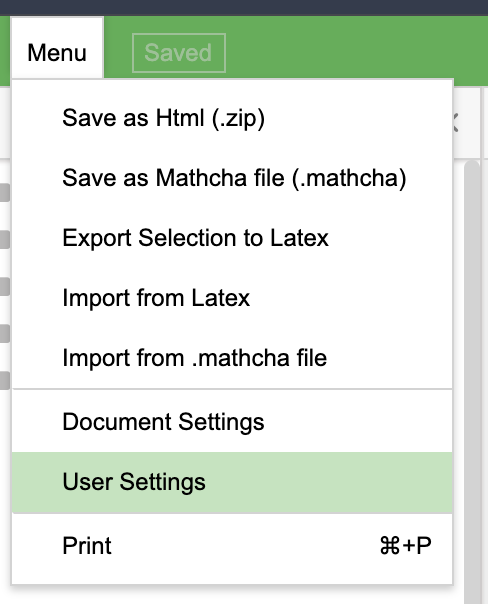
Section titled “Opening User Settings”Go to Menu > User Settings:
Settings
Section titled “Settings”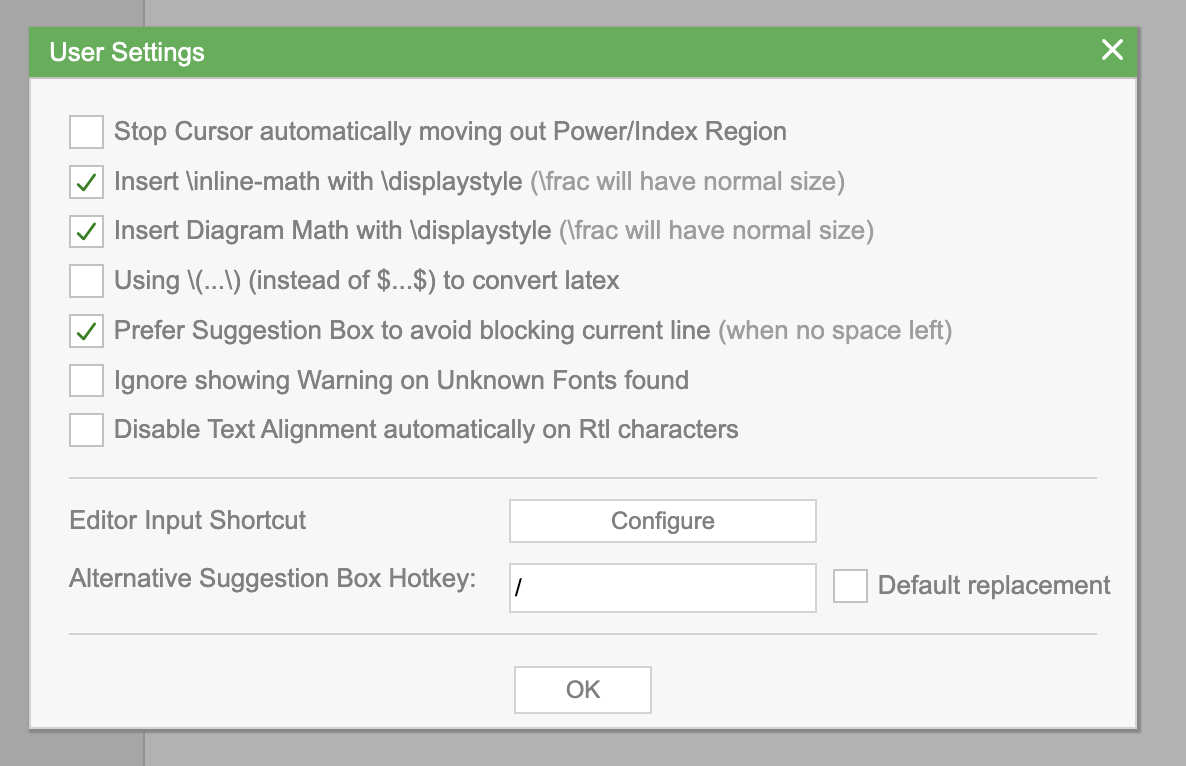
Stop Cursor automatically moving out Power/Index Region
Section titled “Stop Cursor automatically moving out Power/Index Region”When you type a superscript or subscript (e.g., x²), the cursor normally auto-advances out of the power/index region after one character. Enable this to keep the cursor inside the region so you can continue typing without manually navigating back.
Insert \inline-math with \displaystyle
Section titled “Insert \inline-math with \displaystyle”When enabled, inline math expressions use \displaystyle, which renders fractions and similar elements at their full (larger) size. When disabled, inline math uses compact sizing to fit within text lines — for example, \frac{a}{b} appears smaller.
Insert Diagram Math with \displaystyle
Section titled “Insert Diagram Math with \displaystyle”Same as above, but applies to math expressions inside drawing areas. Enabled by default.
Using (…) (instead of $…$) to convert latex
Section titled “Using (…) (instead of $…$) to convert latex”Controls which delimiters are used when converting math to LaTeX. When enabled, uses the standard LaTeX delimiters \( and \) instead of the TeX-style $...$. This can improve compatibility with certain LaTeX processors and publishing platforms.
Prefer Suggestion Box to avoid blocking current line
Section titled “Prefer Suggestion Box to avoid blocking current line”When enabled, the suggestion box repositions itself to avoid covering the line you are currently editing, if there is not enough space below. When disabled, the suggestion box always appears in its default position.
Ignore showing Warning on Unknown Fonts found
Section titled “Ignore showing Warning on Unknown Fonts found”Suppresses the warning dialog that appears when a document uses fonts not available on your system. Enable this if you frequently work with documents from other users and don’t want to be notified about missing fonts.
Disable Text Alignment automatically on RtI characters
Section titled “Disable Text Alignment automatically on RtI characters”By default, the editor automatically adjusts text alignment when it detects right-to-left characters (such as Arabic or Hebrew). Enable this to prevent automatic alignment changes and keep your manual alignment settings.
Editor Input Shortcut
Section titled “Editor Input Shortcut”Click Configure to open the Shortcut Manager, where you can define custom text and math shortcuts:
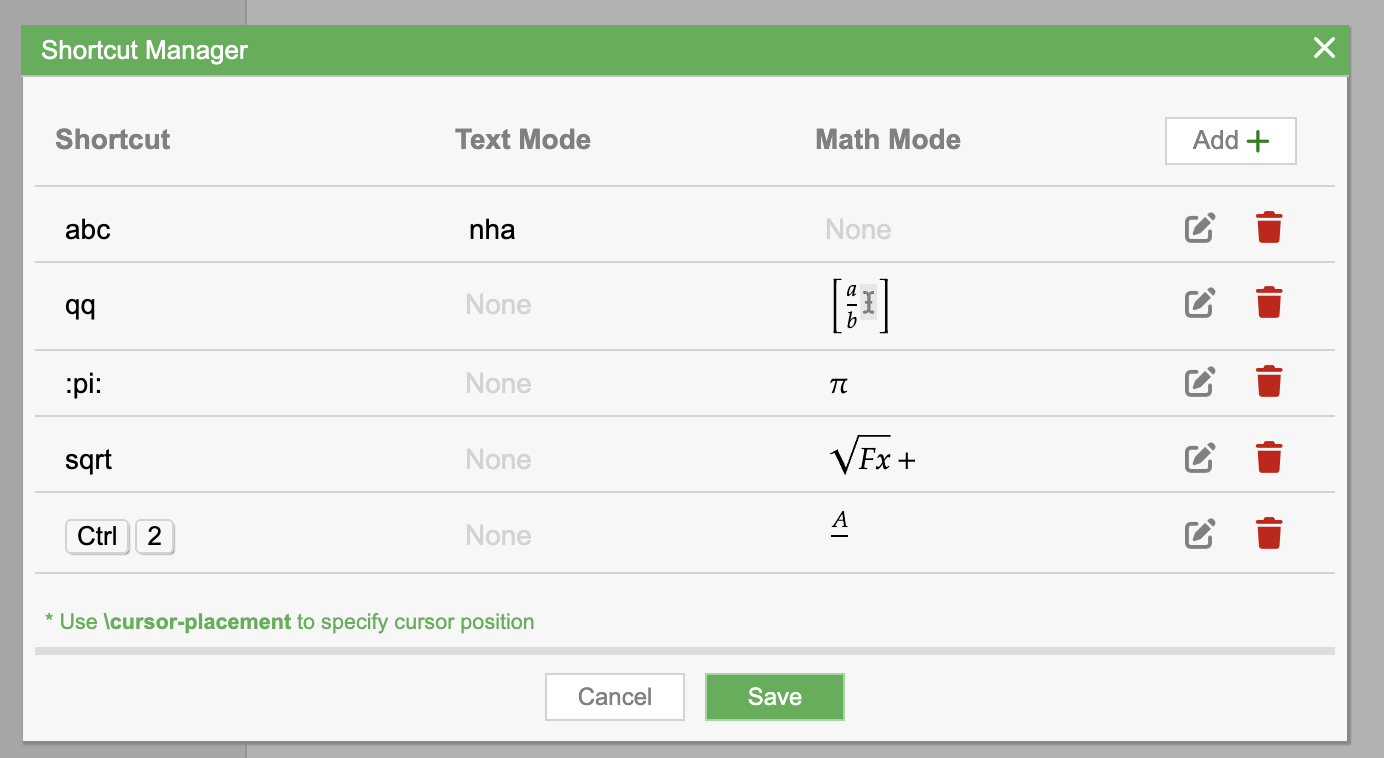
Each shortcut has three columns:
| Column | Description |
|---|---|
| Shortcut | The trigger text or key combination (e.g., abc, :pi:, Ctrl+2) |
| Text Mode | What gets inserted when the shortcut is triggered in text mode |
| Math Mode | What gets inserted when the shortcut is triggered in math mode |
A shortcut can have an action for Text Mode, Math Mode, or both. Set a column to None to skip that mode.
Use \cursor-placement in a shortcut’s replacement to control where the cursor lands after insertion.
Click Add + to create a new shortcut, or use the edit and delete icons to modify existing ones.
Alternative Suggestion Box Hotkey
Section titled “Alternative Suggestion Box Hotkey”By default, the suggestion box is triggered by typing \ in the editor. You can set an alternative hotkey here by clicking the input field and pressing your preferred key combination (e.g., /).
Check Default replacement to disable the default \ trigger entirely and use only your custom hotkey.