Math Tabular Layout
Matrix
Section titled “Matrix”Name: \matrix
The default matrix is $2\times 2$ with parentheses. Click on  to show options:

- (1) Change to another layout (Array, Cases, …)
- (2) Modify the number of rows
- (3) Modify the number of columns
- (4) Select bracket type

Select any cell and right-click to show more options for interacting with the matrix:
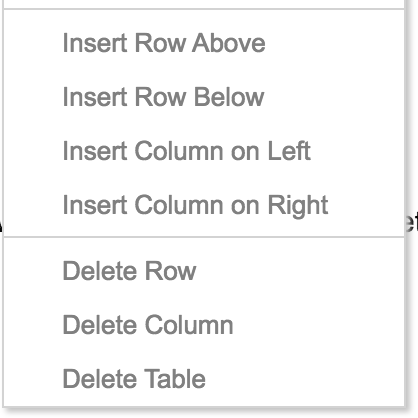
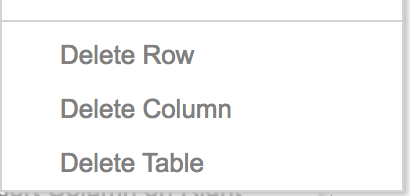
Select multiple cells and right-click to see options for removing rows/columns and the table:
Name: \cases
Options are the same as Matrix, without the option to select bracket type.

Gathered
Section titled “Gathered”Name: \gathered
This layout is used when you want to display formulas in multiple columns. Each column is aligned center automatically. Options are the same as Matrix.

*Note: There is also Gather in Text Mode, which is the same feature but with larger spacing between columns.
Aligned
Section titled “Aligned”Name: \aligned
This layout is used when you want to display equations like this:

Or something like this

*Note: There is also Aligned in Text Mode, which is the same feature but with larger spacing between columns.
Name: \array

This layout is like “Table”, which allows you to have borders and adjust text alignment for each column. Options:
By clicking on  , you will enter “Border Management Mode”. Click on any side of a row or column to show or hide the border, then click outside to exit this mode:
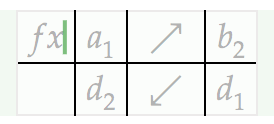
You can have borders as shown below:

With  you can adjust the text alignment of the column where your cursor is currently located. For example:

Gather
Section titled “Gather”Name: \gather
*Note: Insert from Text Mode. This layout is the same as the \gathered layout, but the spaces between columns are distributed equally. For example, with 2 columns:

Or 3 columns

A tag can be inserted on the right of each column on every row, as shown in the example above.
Name: \align
*Note: Insert from Text Mode. This layout is the same as the \aligned layout, but the spaces between columns are distributed equally. For example, with 2 columns:

Or like this with 4 columns:
A tag can be inserted on the right of each column-pair on every row, as shown in the example above.