Find and Replace
Find and Replace lets you search for text or math expressions in your document and optionally replace them.
Opening Find
Section titled “Opening Find”Press Ctrl+F (or ⌘+F on Mac) to open the Find bar in the top-right corner of the editor.
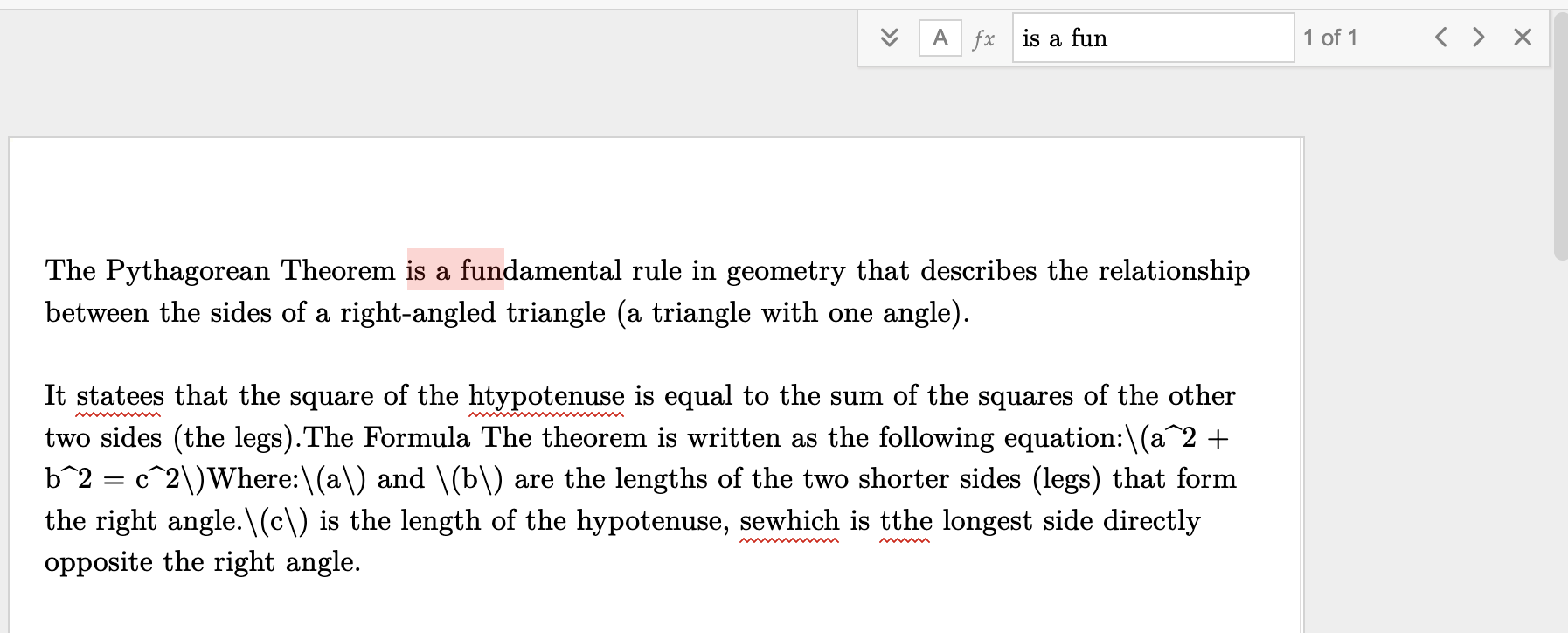
Type your search term and matches are highlighted in the document. The counter (e.g., “1 of 1”) shows the current match and total number of matches. Use the < and > arrows to navigate between matches.
Find and Replace
Section titled “Find and Replace”Click the expand arrow (˅) on the left side of the Find bar to reveal the Replace field:
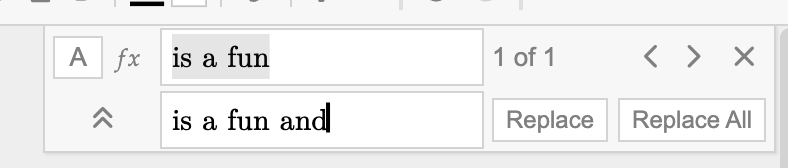
- Replace — replace the current match with the replacement text
- Replace All — replace all matches at once
Search Modes
Section titled “Search Modes”The Find bar has two toggle buttons that control what you search for:
| Button | Mode | Description |
|---|---|---|
| A | Text mode | Search for plain text in the document (default) |
| fx | Math mode | Search for math expressions using LaTeX notation |
Searching Math Expressions
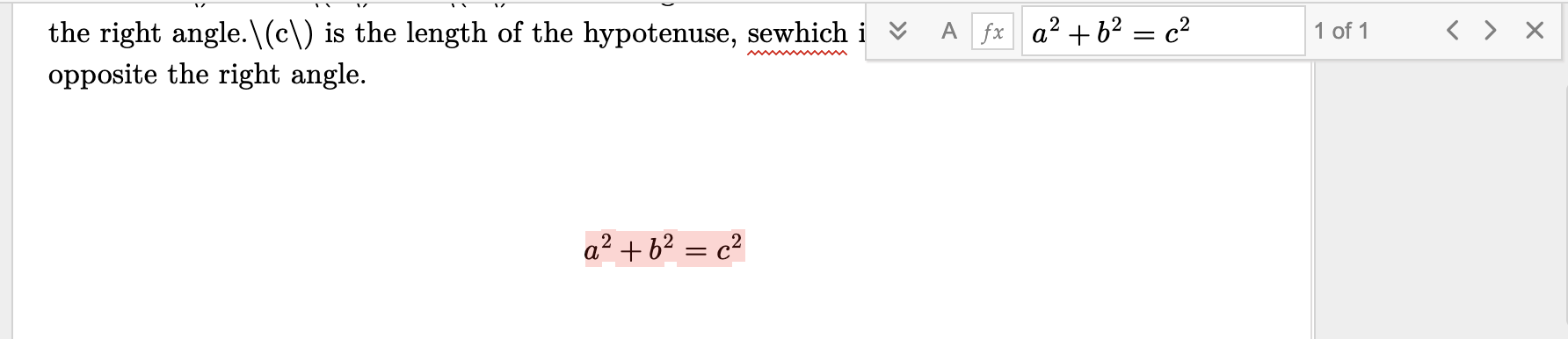
Section titled “Searching Math Expressions”Click the fx button to switch to math mode. You can type a math expression and it will be rendered in the search field. Matches are found in math containers and inline math throughout the document:
Keyboard Shortcuts
Section titled “Keyboard Shortcuts”| Shortcut | Action |
|---|---|
⌘+F / Ctrl+F | Open Find |
⌘+H / Ctrl+H | Open Find and Replace |
Enter | Find next match |
Shift+Enter | Find previous match |
Escape | Close Find bar |