Printing
Print your document by going to Menu > Print, or press ⌘+P / Ctrl+P.
Do not use the browser’s built-in Print command directly — Mathcha needs to prepare the document layout before printing.
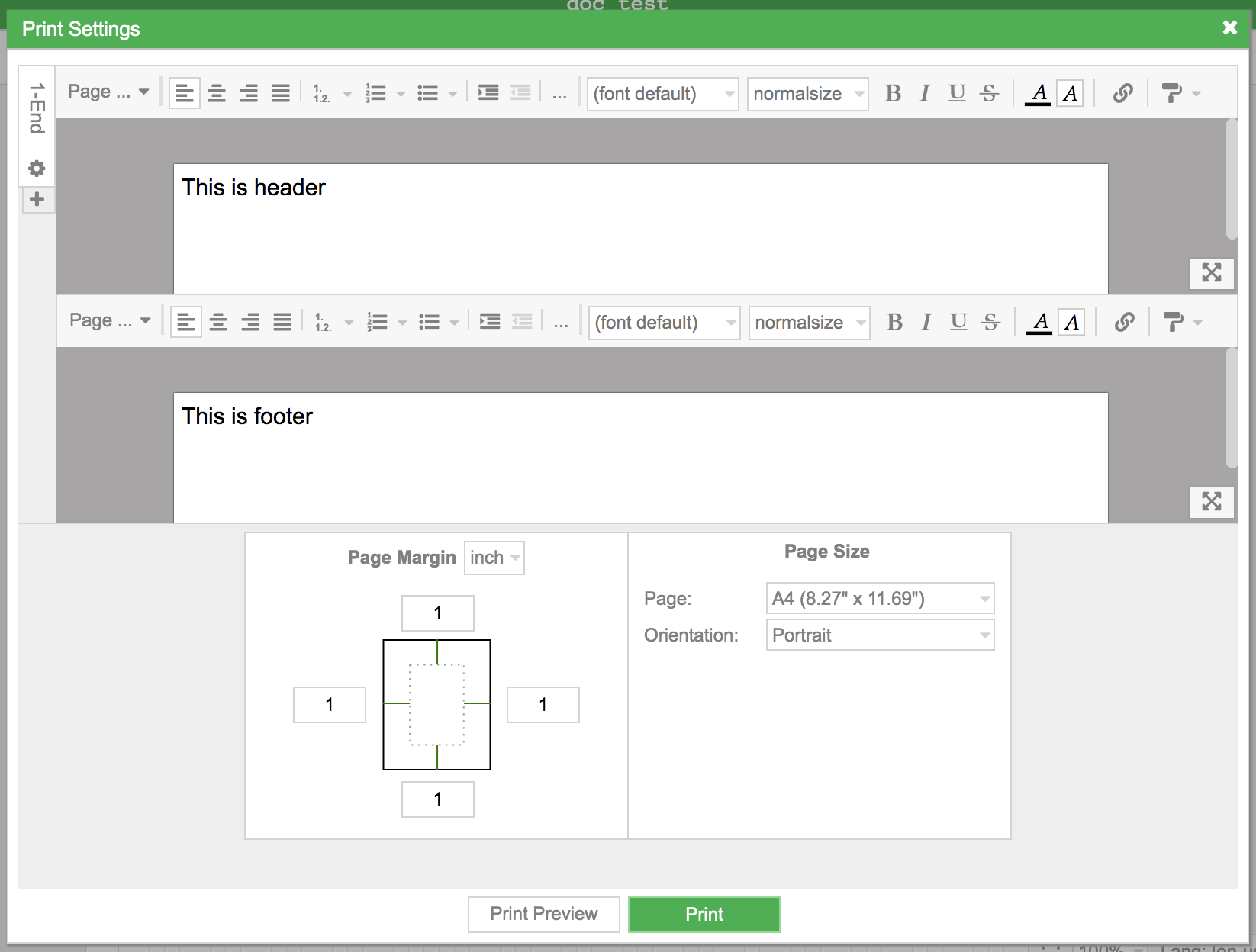
Page Size
Section titled “Page Size”The Print Settings dialog lets you choose a page size:
- Custom — set your own page dimensions
- Same as Document — uses the width specified in Document Settings
- Single Whole Document — prints everything on a single page
Page Margin
Section titled “Page Margin”The Page Margin section at the bottom-left of the Print Settings dialog lets you set margins for all four sides of the page (top, bottom, left, right). Click any of the margin fields and enter a value in the selected unit (e.g., inch). These margins control how much space is left between the page edge and the document content when printing.
Header and Footer
Section titled “Header and Footer”The Print Settings dialog shows Header and Footer areas at the top and bottom of the page. You can type text directly into these areas, and use special symbols from the suggestion box.
Special Symbols
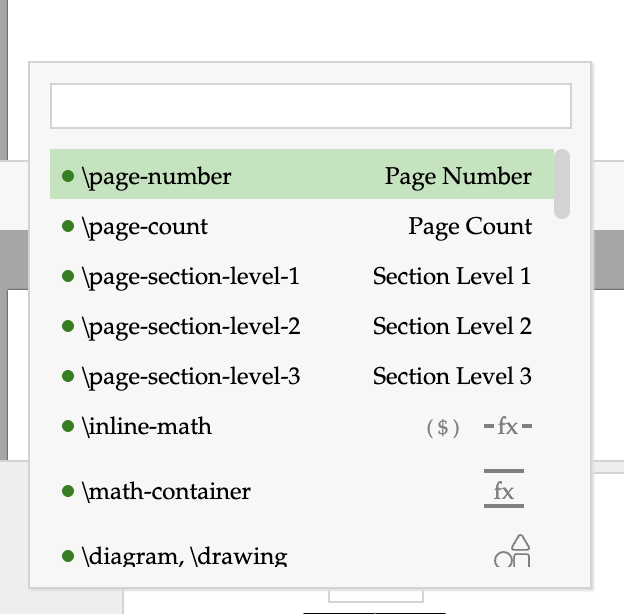
Section titled “Special Symbols”Type \ inside a header or footer to open the suggestion box with these special symbols:
| Symbol | Description |
|---|---|
\page-number | Current page number |
\page-count | Total number of pages |
\page-section-level-1 | Section heading (level 1) of the current page |
\page-section-level-2 | Section heading (level 2) of the current page |
\page-section-level-3 | Section heading (level 3) of the current page |
These symbols are resolved to the correct values on each page when printing. You can also insert \inline-math, \math-container, and \diagram / \drawing into headers and footers.
Multiple Headers/Footers by Page Range
Section titled “Multiple Headers/Footers by Page Range”You can define different headers and footers for different page ranges. On the left side of the Print Settings dialog, each tab shows a page range (e.g., “1-End”):
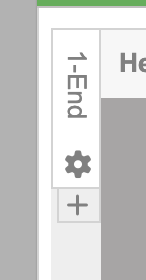
- Click the + button to add a new header/footer with its own page range
- Click the ⚙ (cog) icon to open the Header/Footer Settings dialog for the selected range
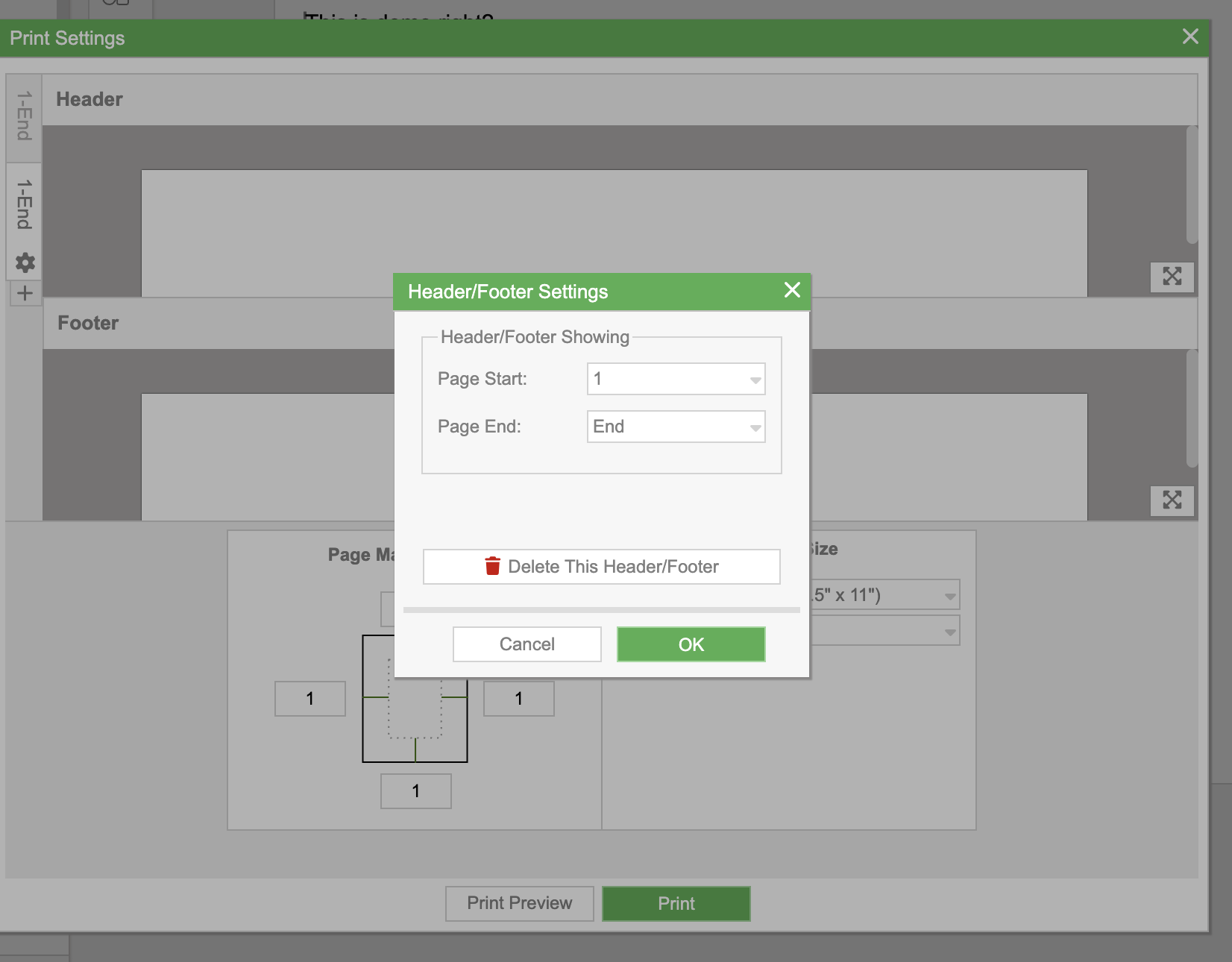
In the Header/Footer Settings dialog:
- Page Start — the first page this header/footer applies to
- Page End — the last page (use “End” for all remaining pages)
- Delete This Header/Footer — remove this page range entry
This lets you have, for example, no header on page 1 (a title page) and page numbers on pages 2 onward.
Print Preview
Section titled “Print Preview”Click Print Preview at the bottom of the Print Settings dialog to see how your document will look when printed. The preview shows the full page layout including headers, footers, margins, and page breaks.
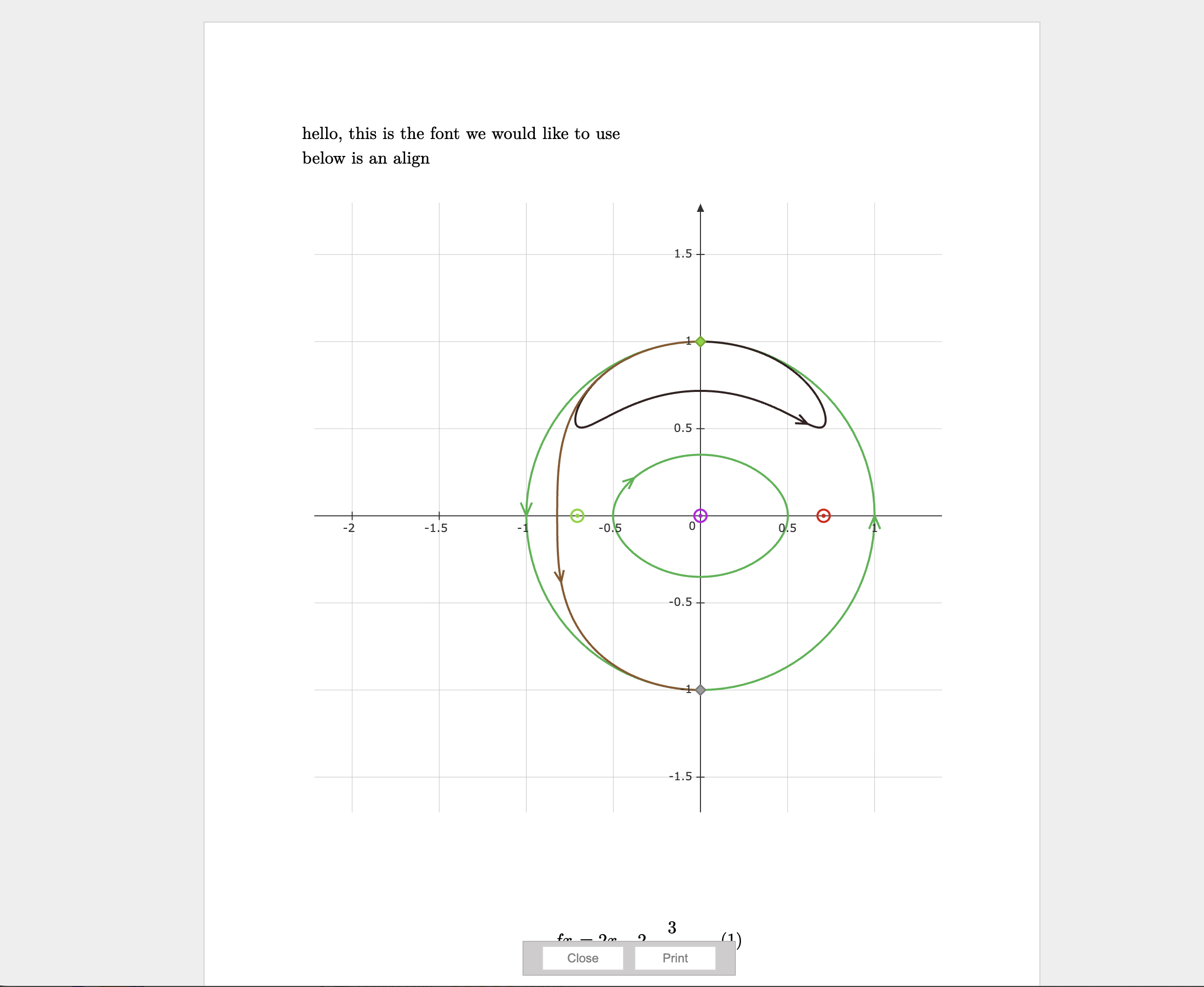
From the preview, click Print to send the document to your printer, or Close to go back to the Print Settings dialog.
PDF export: Mathcha does not have a built-in PDF export. However, most browsers (such as Chrome) offer a “Save as PDF” option in their print dialog, which you can use to save your document as a PDF file.