Arrow
An arrow is a line with decorative markers at its endpoints or midpoint. Arrows are the most common way to show direction, flow, or relationships between elements in a diagram.
Creating an Arrow
Section titled “Creating an Arrow”- Open a Drawing Area (insert one with
\diagramfrom the suggestion box). - Select the Line tool from the items bar on the left.
- Choose the Arrow subtype (→) from the line subtypes that appear.
- Click on the canvas to place the start point, then click again to place the end point.
By default, the arrow subtype creates a line with an arrowhead at the head. You can customize the markers using the toolbar.
The Arrow Toolbar
Section titled “The Arrow Toolbar”When you select a line, the toolbar shows arrow and line configuration options:

From left to right, the toolbar contains:
| Selector | Description |
|---|---|
| Tail Arrow Type | Marker at the start of the line |
| Shaft Type | The overall line preview showing current tail/head configuration |
| Head Arrow Type | Marker at the end of the line |
| Middle Arrow Type | Marker at the center of the line |
| Breakpoint Arrow Type | Markers at bend points (see Line Breakpoint Arrows) |
| Line Style | Solid, dashed, or dotted |
| Color | Line and marker color |
| Thickness | Line width in pixels |
Click any arrow type selector to open a dropdown with the available marker styles.
Arrow Positions
Section titled “Arrow Positions”Each line has three main positions where you can place an arrow marker:
- Tail — the start point of the line
- Head — the end point of the line
- Middle — the center of the line
You can set a different marker style at each position independently. For example, a dot at the tail and an arrowhead at the head.
Arrow Marker Styles
Section titled “Arrow Marker Styles”Click on any arrow type selector (Tail, Head, Middle, or Breakpoint) to see the available marker styles:
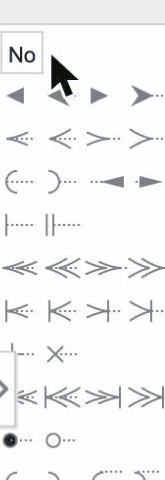
The dropdown shows all available marker types organized in rows. Each row offers size variants (small to large) of the same style. The available styles include:
| Style | Description |
|---|---|
| No | No marker (plain line endpoint) |
| Arrow | Filled triangular arrowhead (available in multiple sizes) |
| Chevron | Open V-shaped arrowhead (available in multiple sizes) |
| Arc | Small curved bracket |
| Bar | Perpendicular line across the endpoint |
| Double Bar | Two perpendicular lines |
| Double Chevron | Two stacked open arrowheads |
| Bar + Chevron | Combined bar and chevron markers |
| Cross | X mark at the endpoint |
| Plus | + mark at the endpoint |
| Double Bar + Chevron | Combined double bar and chevron |
| Dot | Filled circle |
| Circle | Open (unfilled) circle |
| Arc Bracket | Curved parenthesis-style bracket |
Common Arrow Configurations
Section titled “Common Arrow Configurations”Here are some frequently used combinations:
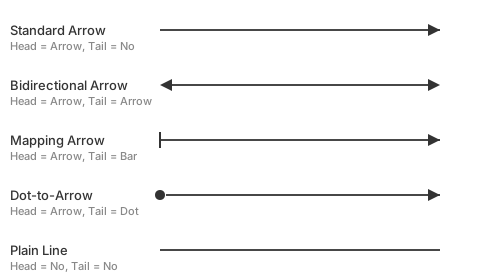
- Standard arrow: Head = Arrow, Tail = No
- Bidirectional arrow: Head = Arrow, Tail = Arrow
- Mapping arrow: Head = Arrow, Tail = Bar
- Dot-to-arrow: Head = Arrow, Tail = Dot
- Line with no markers: Head = No, Tail = No (plain line)
Line Types
Section titled “Line Types”In addition to arrow markers, you can change the line style from the toolbar:
- Solid — continuous line (default)
- Dashed — line with dashes
- Dotted — line with dots
Thickness
Section titled “Thickness”Adjust the line thickness from the toolbar. The value is in pixels and applies to the entire line including its markers.